> ## Documentation Index
> Fetch the complete documentation index at: https://docs.loisforword.com/llms.txt
> Use this file to discover all available pages before exploring further.
# Creating Fallbacks
> How to add and manage fallback positions in your LOIS for Word playbook so contract review reflects acceptable alternatives when your preferred language fails.
## Overview
Fallbacks let you define alternative positions for each rule in your playbook — so the AI knows what to do when your preferred language isn’t accepted.\
You can create multiple fallback options, each with its own trigger conditions, like deal size or review round.
***
## Why use fallbacks
* Handle **different negotiation scenarios** (e.g., small vs. large contracts)
* Simplify **later passes** in review (2nd, 3rd round edits)
* Ensure **consistent fallback logic** across your team
* Give AI the context to suggest the right position automatically
***
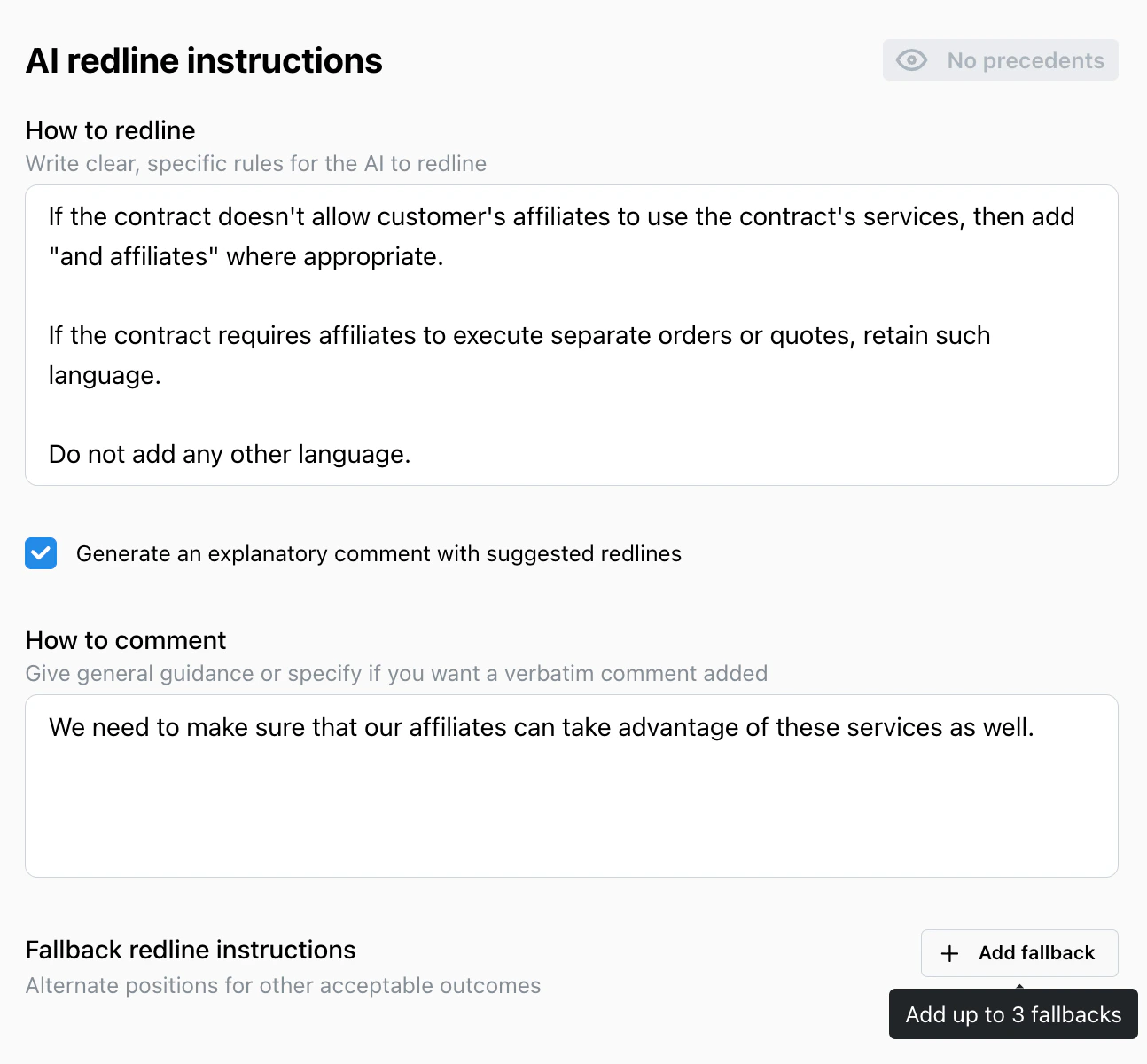
## Adding a fallback
Go to your playbook and select the rule you want to edit.
Select **Add Fallback** at the bottom of the rule.\
Enter your alternative clause language.
Specify when this fallback should apply, such as:
* *Deal value \< \$50k*
* *Second pass review*
* *Counterparty refused preferred term*
Select **Save** to apply changes.\
You can add up to 10 fallbacks per issue (more on request).
 ***
## Example
**Preferred position:**
> Payment due within 45 days of invoice date.
**Fallback 1:**
> Payment due within 60 days for deals under \$50,000.
**Fallback 2:**
> Payment due within 75 days on second-pass negotiations.
***
## Testing your fallbacks
* When running a playbook, LOIS for Word asks for **context** (“Second pass,” “Deal under \$50k,” etc.).
* The AI then selects the right fallback automatically based on those triggers.
* You can preview which fallback applied in the review drawer before accepting edits.
***
## Best practices
1. **Keep fallback logic simple**\
Use short, clear trigger conditions (avoid stacking too many in one rule).
2. **Label your fallbacks clearly**\
Example: “Small deals – relaxed payment terms.”
3. **Review analytics**\
Check how often each fallback is used to identify standard positions.
Fallbacks make your playbook adaptive. Once set up, LOIS for Word automatically picks the right fallback based on your deal context—no manual switching needed.
***
## Example
**Preferred position:**
> Payment due within 45 days of invoice date.
**Fallback 1:**
> Payment due within 60 days for deals under \$50,000.
**Fallback 2:**
> Payment due within 75 days on second-pass negotiations.
***
## Testing your fallbacks
* When running a playbook, LOIS for Word asks for **context** (“Second pass,” “Deal under \$50k,” etc.).
* The AI then selects the right fallback automatically based on those triggers.
* You can preview which fallback applied in the review drawer before accepting edits.
***
## Best practices
1. **Keep fallback logic simple**\
Use short, clear trigger conditions (avoid stacking too many in one rule).
2. **Label your fallbacks clearly**\
Example: “Small deals – relaxed payment terms.”
3. **Review analytics**\
Check how often each fallback is used to identify standard positions.
Fallbacks make your playbook adaptive. Once set up, LOIS for Word automatically picks the right fallback based on your deal context—no manual switching needed.