> ## Documentation Index
> Fetch the complete documentation index at: https://docs.loisforword.com/llms.txt
> Use this file to discover all available pages before exploring further.
# Web app chat history
> How chat history works in the LOIS web app, including how to open the history drawer, restore prior conversations, and keep contract work organized.
LOIS automatically saves your chat sessions so you can return to earlier conversations, pick up where you left off, and keep your work organized across documents.
## Opening chat history
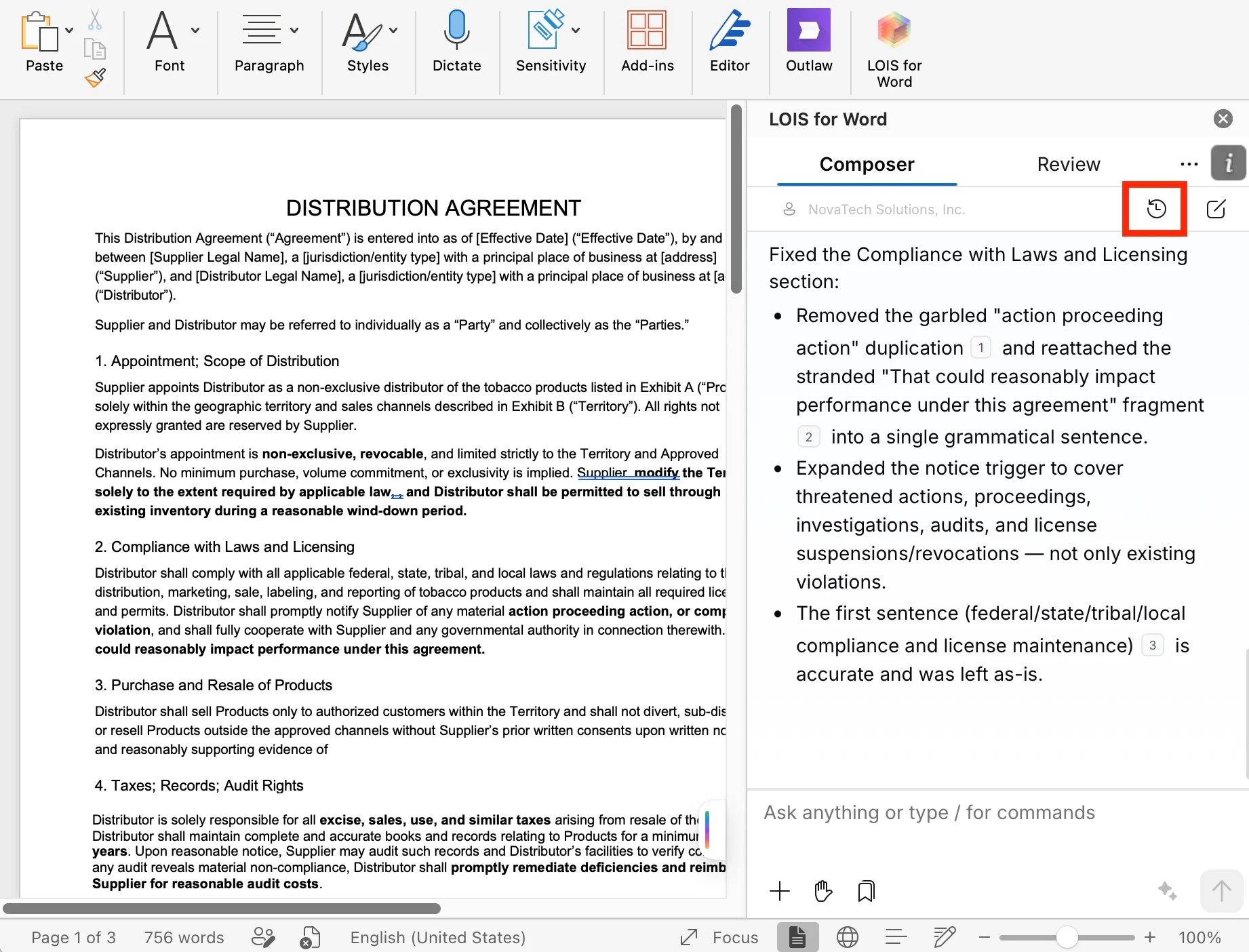
To open the **Chat history** drawer in the LOIS chat panel, select the history icon in the chat header.
 In the History panel, you can switch between chats from **This document** or **All documents**. Each entry shows the conversation title and a relative timestamp.
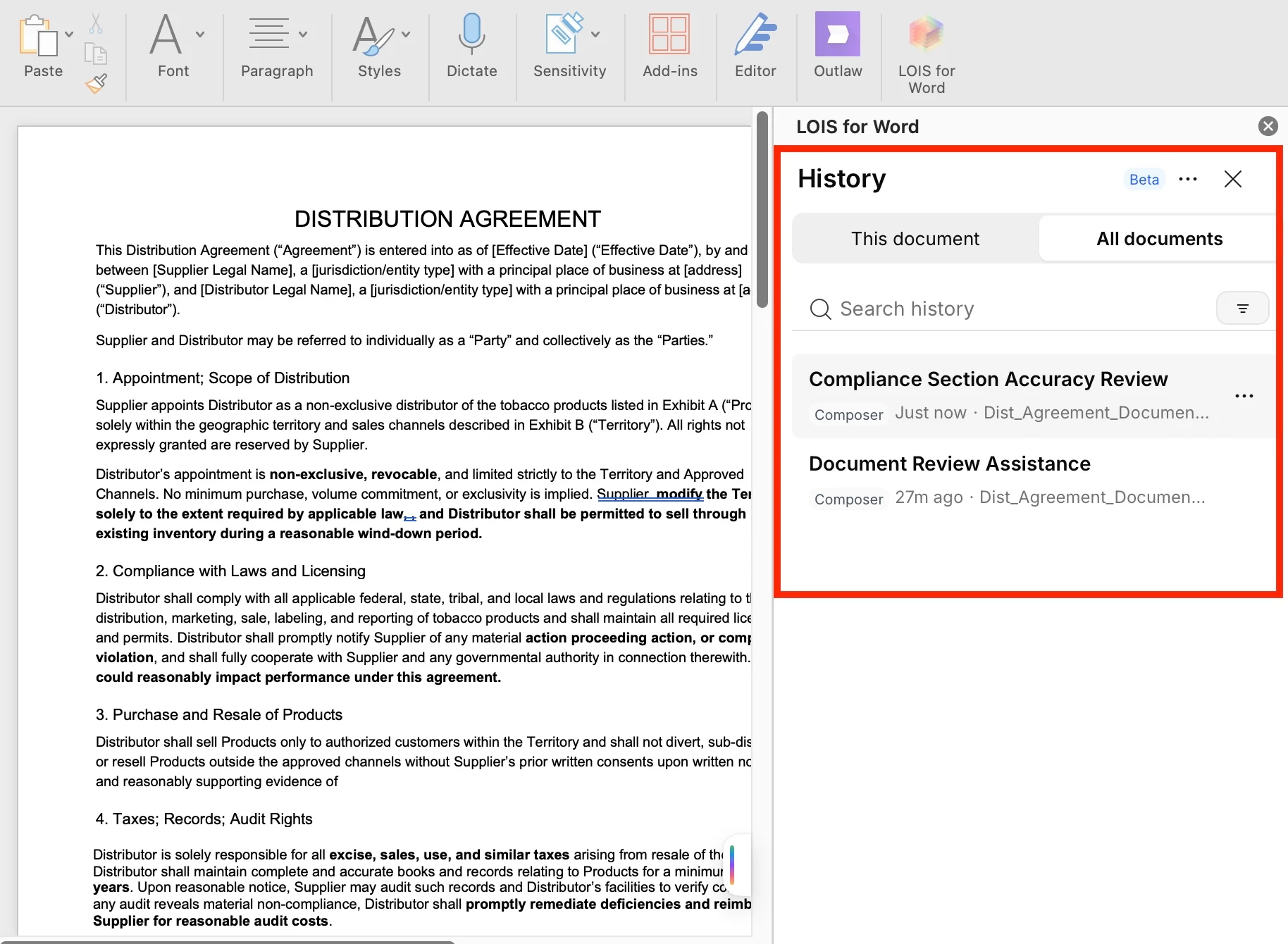 Sessions are grouped by recency:
* Today
* Yesterday
* Previous 7 days
* Older
The drawer initially loads your 50 most recent sessions. If more exist, a **Load more** button appears in the drawer footer.
## Returning to a conversation
Select any session in the list to load it back into the chat panel. Messages, configuration, and any inline redline cards are restored, so you can continue the conversation in context.
If you have an active conversation when you restore a session, LOIS automatically saves your current session before switching.
## Starting a new chat
Select the **New chat** (compose) icon in the drawer header to start a fresh conversation without closing the drawer. LOIS saves your previous session and keeps it available in history.
## Searching
Use the search box at the top of the drawer to filter sessions by title. Search is local to the drawer and resets when you close it.
## Naming and deleting
New conversations start with a truncated title based on your first message. Shortly after the first assistant response, LOIS replaces it with a concise AI-generated title that better reflects the conversation. You can override the title at any time using **Rename**.
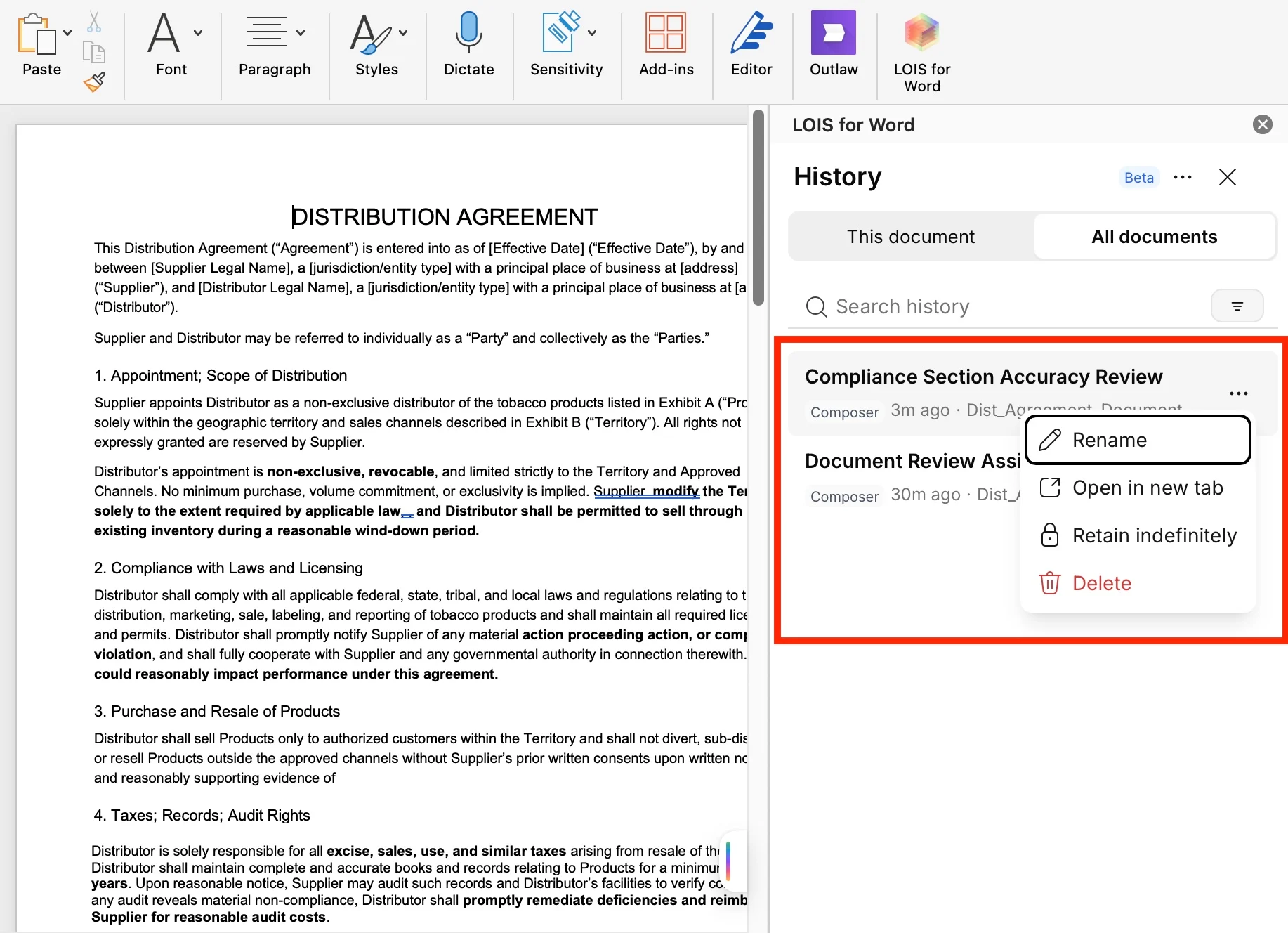
Click the **ellipsis menu** for a session to reveal an overflow menu with four actions:
* **Rename** — replace the auto-generated title with your own.
* **Open in a new tab** — open the add-in in its own window, with the selected session open.
* **Retain indefinitely** — disable auto clean-up for this session.
* **Delete** — remove the session from history.
Sessions are grouped by recency:
* Today
* Yesterday
* Previous 7 days
* Older
The drawer initially loads your 50 most recent sessions. If more exist, a **Load more** button appears in the drawer footer.
## Returning to a conversation
Select any session in the list to load it back into the chat panel. Messages, configuration, and any inline redline cards are restored, so you can continue the conversation in context.
If you have an active conversation when you restore a session, LOIS automatically saves your current session before switching.
## Starting a new chat
Select the **New chat** (compose) icon in the drawer header to start a fresh conversation without closing the drawer. LOIS saves your previous session and keeps it available in history.
## Searching
Use the search box at the top of the drawer to filter sessions by title. Search is local to the drawer and resets when you close it.
## Naming and deleting
New conversations start with a truncated title based on your first message. Shortly after the first assistant response, LOIS replaces it with a concise AI-generated title that better reflects the conversation. You can override the title at any time using **Rename**.
Click the **ellipsis menu** for a session to reveal an overflow menu with four actions:
* **Rename** — replace the auto-generated title with your own.
* **Open in a new tab** — open the add-in in its own window, with the selected session open.
* **Retain indefinitely** — disable auto clean-up for this session.
* **Delete** — remove the session from history.
 ## Tips
* Restore a prior conversation before continuing a long-running task so LOIS has the full context.
* Rename important sessions (e.g. "MSA redlines — Acme") to find them quickly later.
* Use search to jump between conversations tied to specific deals or counterparties.
## Tips
* Restore a prior conversation before continuing a long-running task so LOIS has the full context.
* Rename important sessions (e.g. "MSA redlines — Acme") to find them quickly later.
* Use search to jump between conversations tied to specific deals or counterparties.