

Agent reviews and playbooks
Agent Reviews and playbooks aren’t competing features. They solve different problems, and the best workflow usually involves both. Agent Reviews provide a base layer of reasoning: the AI reads the full contract, identifies issues, and generates redlines and comments on its own — with just a prompt, a playbook as context, or nothing at all. This covers the bulk of the work, including the long tail of issues that don’t need pre-built rules. Playbooks give you additional structure and guard rails, for the 5–20 issues your team cares about deeply. Reach for one when an issue needs strict compliance — a specific fallback hierarchy, escalation path, or approval gate. Agent Reviews won’t always follow a fallback hierarchy the same way twice. The AI reasons independently and may pick a different path because it found something better. That’s a feature for most workflows, but use a playbook when you need strict consistency. The recommended approach: use Agent Reviews as the primary workflow, then layer in lightweight playbooks for the must-have issues that need structured rules.How it works
When you run an Agent Review, LOIS for Word works through your document clause by clause:- Reads the document: The agent scans the full document structure, including tables, footnotes, and tracked changes
- Analyzes each clause: Every clause is evaluated using the agent’s reasoning, your profile, and any playbook or context you’ve provided
- Produces suggestions: For each flagged clause, the agent generates redlines, comments, or both
- Assigns risk scores: Each clause gets a risk rating (low, medium, or high) so you know where to focus
Running agent review
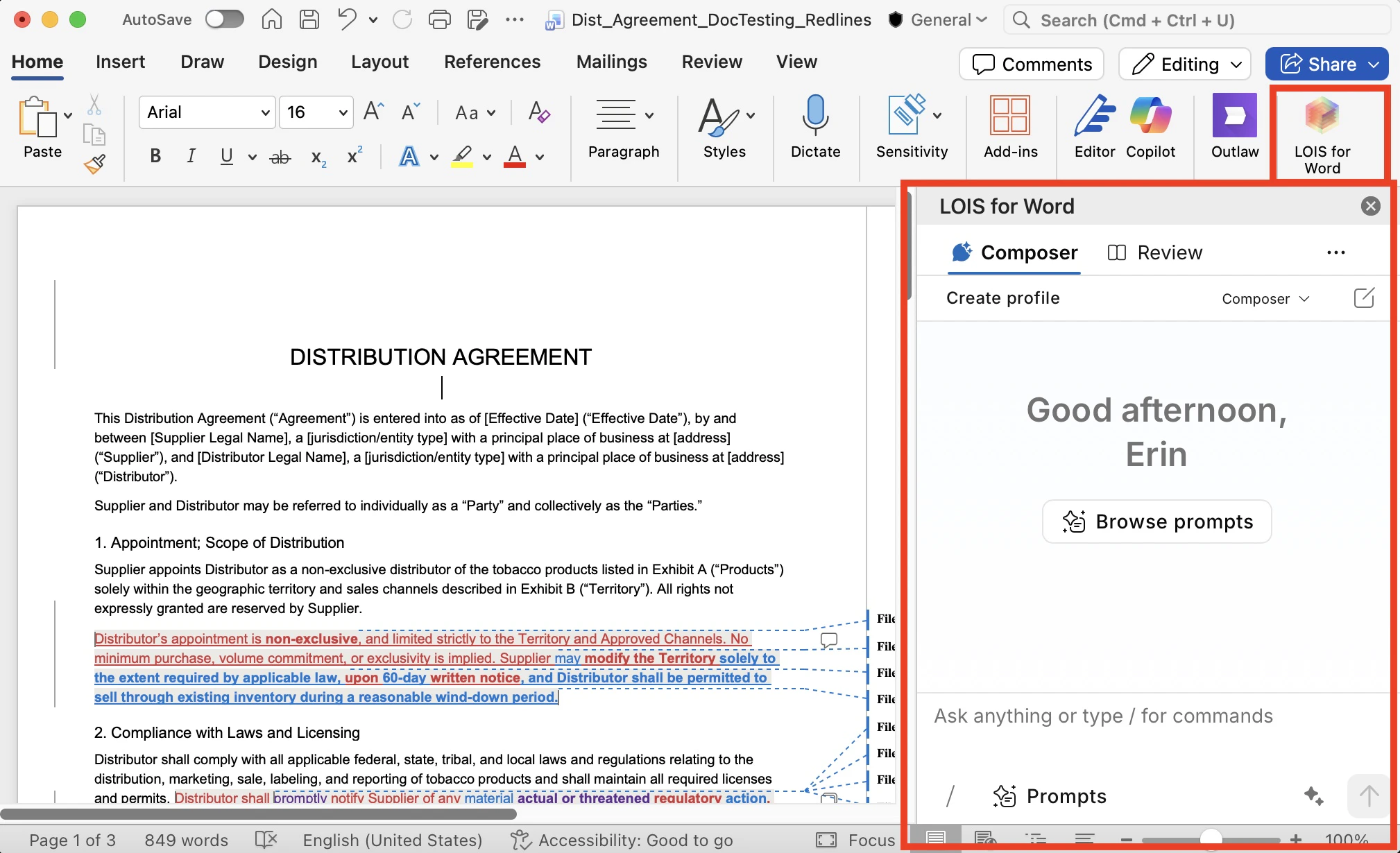
- Open your contract in Word, and open the LOIS for Word add-in.
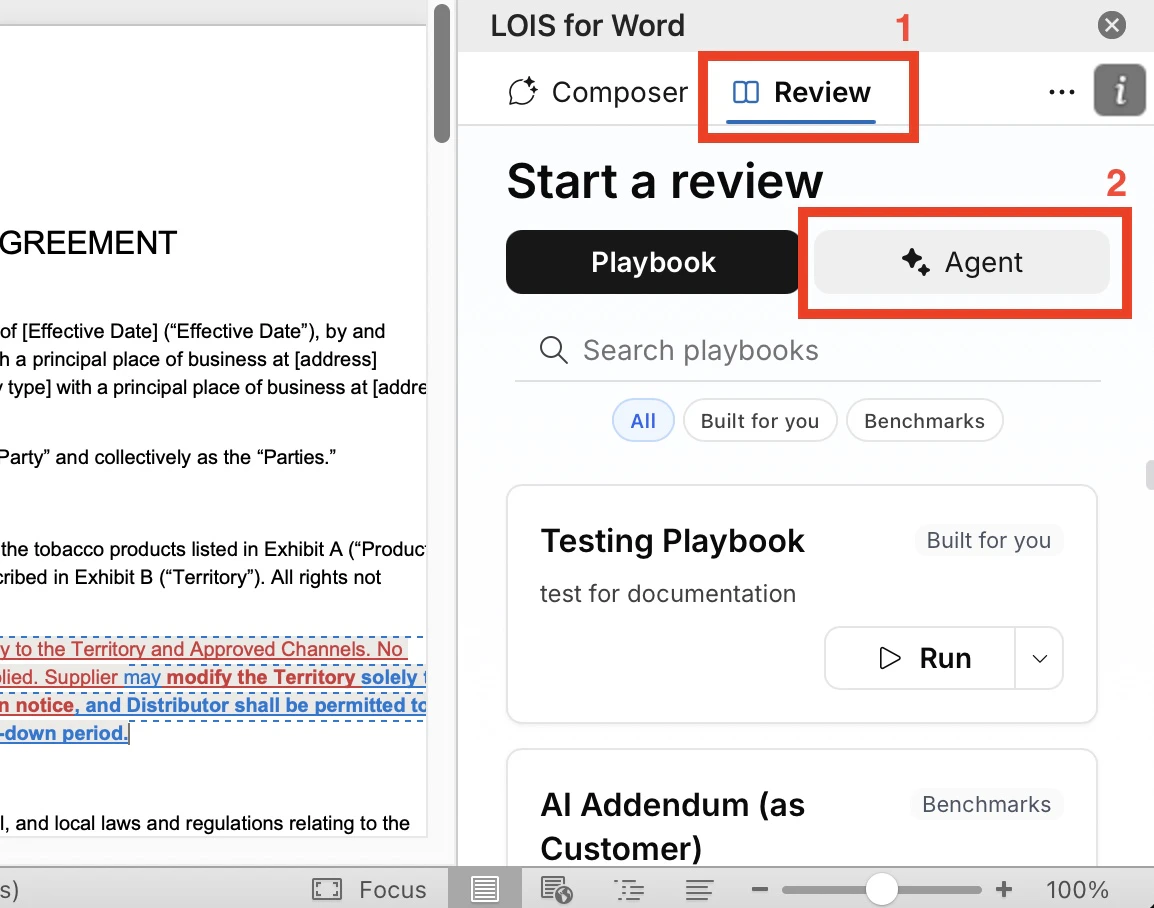
- In the LOIS for Word add-in, select Review and then Agent to open agent review.
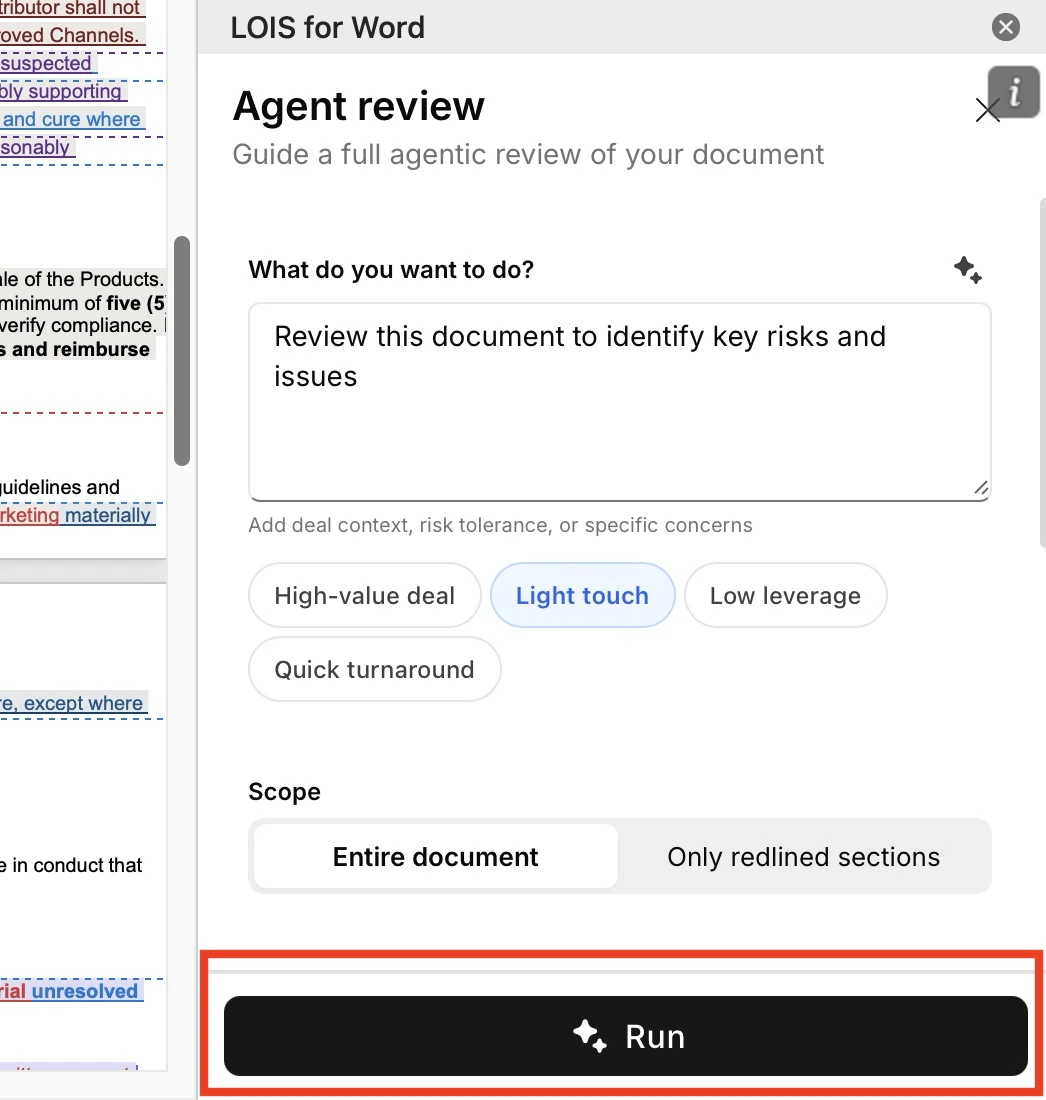
- Optionally, add context before running the review:
- Custom context: Add free-text instructions (up to 2,500 characters) for anything specific the agent should know
- Quick context tags: Select pre-built tags like “high-value deal” or “light-touch review” to adjust the agent’s approach
- Select scope: Decide whether to review the entire document, only redlined sections, or specific clauses
- Playbook: Attach a playbook as context for the agent to reason against
- Select Run at the bottom of the add-in.
Interacting with the agent
During a review, the agent may pause and ask for your input:- Questions: If the agent needs more information to complete a clause review, a banner appears and the questions drawer opens — it may ask you to choose between approaches, confirm a position, or add deal context. Answer, and the agent picks up where it left off.
- Document changes: Before modifying the document directly, the agent shows a diff preview and asks for your approval. Approve, reject, or edit each change — nothing is modified without your sign-off.
Reviewing results
Each clause review includes a risk score, suggested redline, comment explaining the reasoning, and citations to the playbook rules or precedent that informed the suggestion.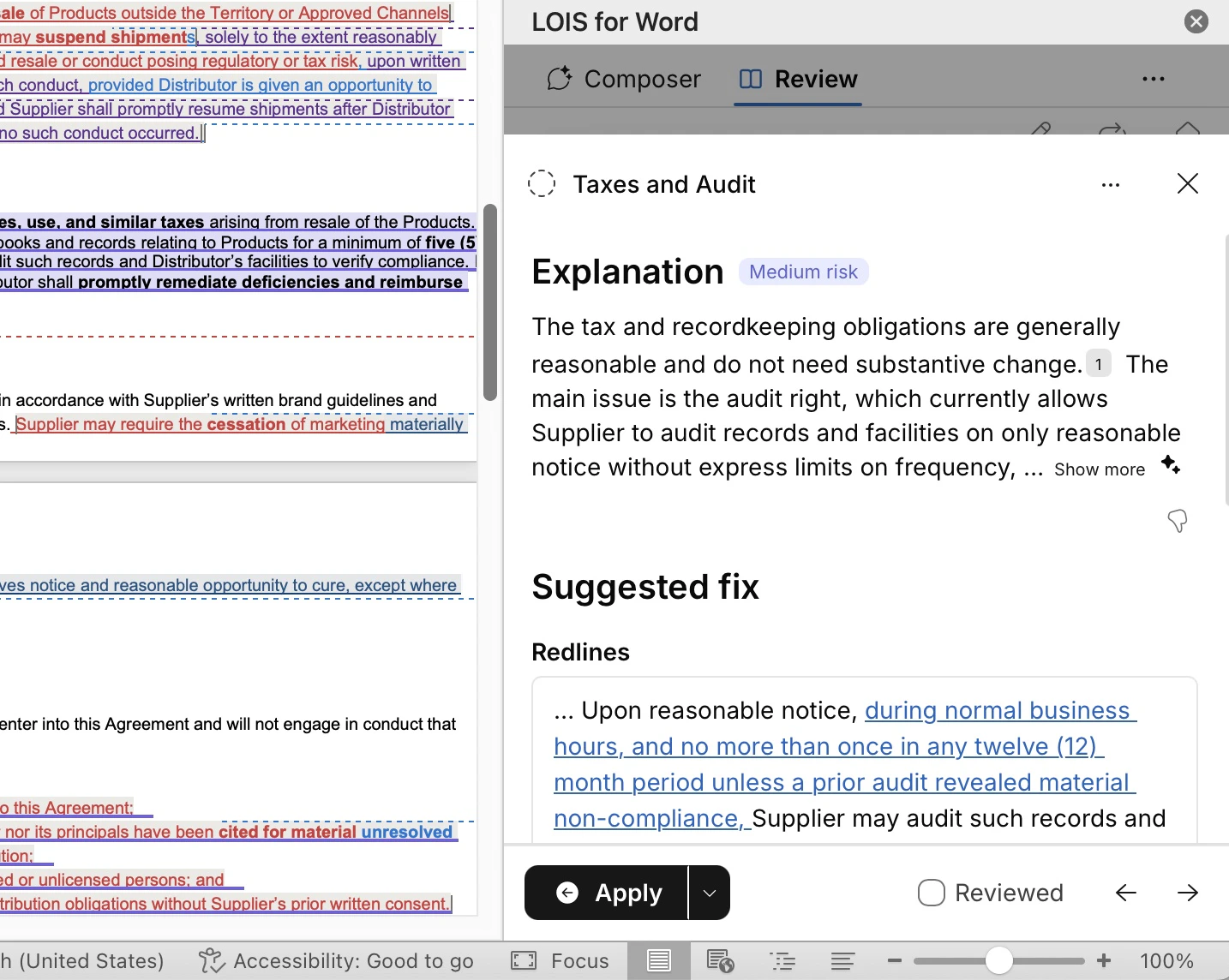
- Redlines only: inserts just the redlines, and suppresses any comments — including comments embedded in a redline suggestion
- Comment only: inserts just the comments
Run a review again
Select Run again to re-run a completed review with the same configuration, against a fresh snapshot of your document and your current selection. A failed run leaves your prior results untouched — they’re only replaced once the new run succeeds.Tips
- Start with Agent Reviews, not playbooks. You don’t need a pre-built rule for every issue. The agent reasons through the contract and catches things you haven’t written rules for.
- Add context before reviewing. A sentence or two about the deal type, your role, or key concerns helps the agent focus on what matters.
- Upload existing guidelines as context. If you have a Word doc playbook or negotiation guidelines, upload them as context rather than converting them into structured rules.
- Review high-risk clauses first. Sort by risk score to prioritize the items that need the most attention.
- Rerun individual clauses. If you’ve updated context or made changes to the document, rerun a specific clause instead of the entire review.
- Pair with Composer. After running Agent Review, switch to Composer to ask follow-up questions about specific flagged clauses or draft alternative language.