

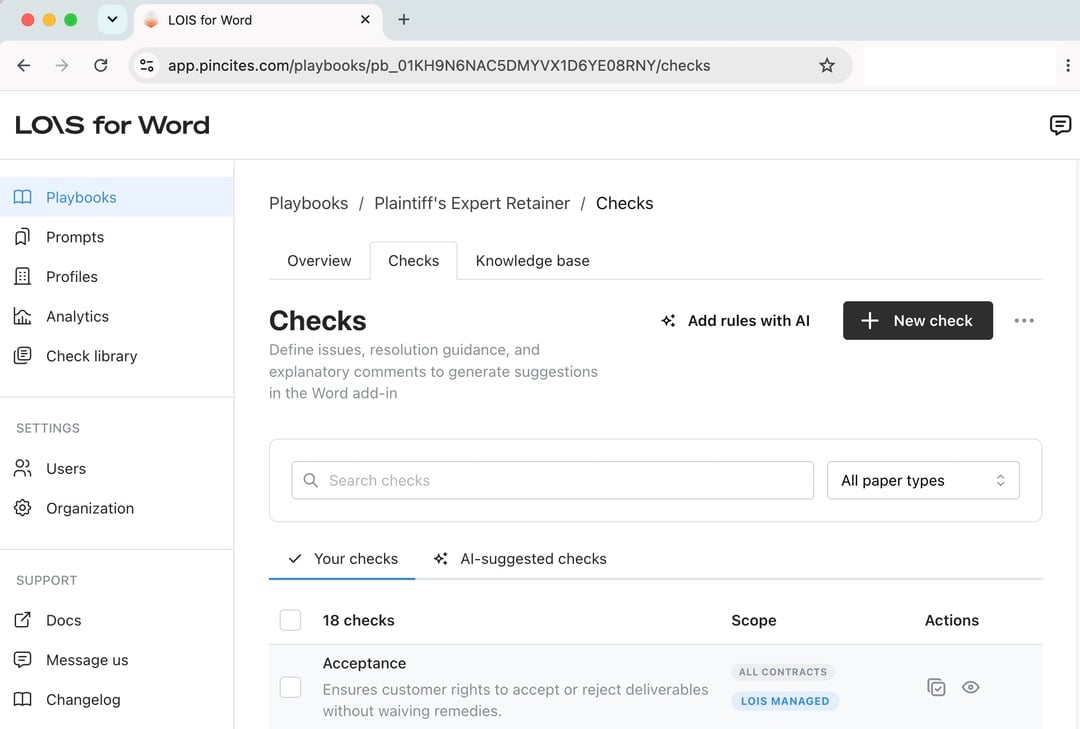
- overview and organizational information: your profile, document type, and descriptions of the strategy and legal frameworks
- checks: a series of rules
- knowledge base: contracts and template files that provide LOIS for Word with additional context
Use Pre-Built Playbooks
LOIS for Word includes 20+ pre-built playbooks covering common contract types like NDAs, MSAs, DPAs, and SaaS agreements. These give you a working starting point that you can customize. In the Word add-in, go to the Playbook tab and select Benchmarks to browse available options.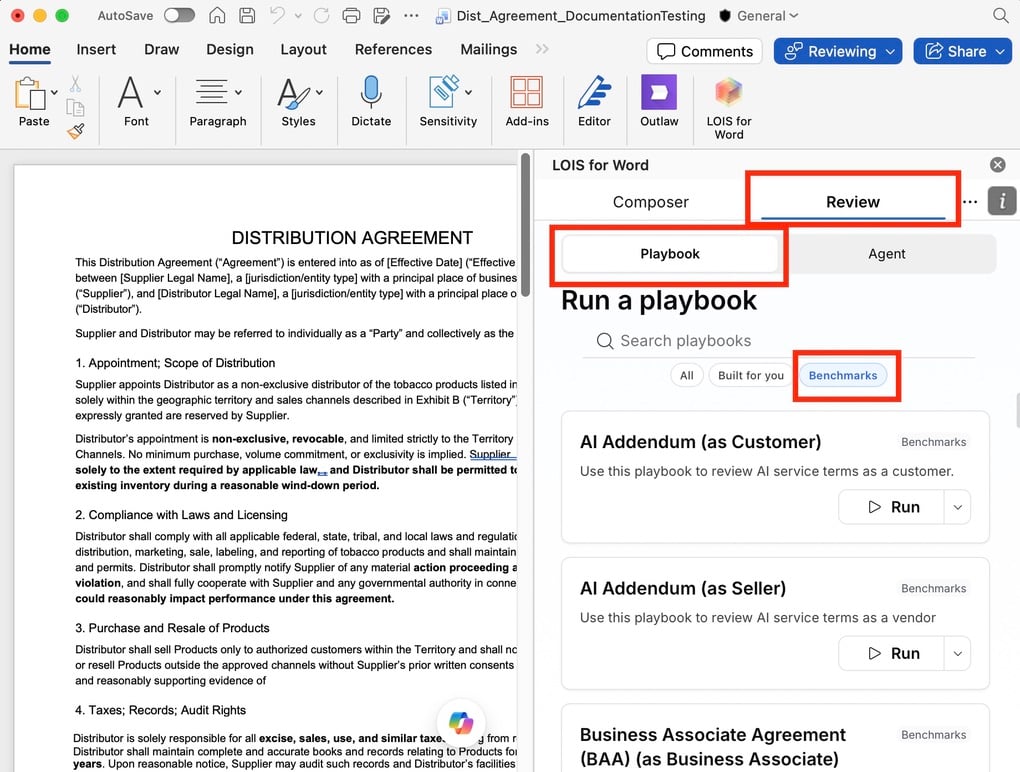
Create a playbook
Quick start checklist
Quick start checklist
- Choose your starting point
- Select a benchmark playbook that matches your contract type
- Or start with a blank playbook if building from scratch
- Upload your template
- Add your standard form to the knowledge base
- LOIS for Word uses it as context for smarter reviews
- Redlines will align with your original positions
- Add training material
- Upload 5-10 redlined contracts from past negotiations
- Include examples that show your typical positions
- LOIS for Word extracts patterns and suggests rules
- Review and edit rules
- Edit AI-generated rules to match your tone and standards
- Add organization-specific nuance
- Test rules on sample contracts before going live
- Test the playbook on a sample contract
- Maintain over time
- Save good redlines as precedent using “Learn from”
- Review and approve new rule suggestions
- Update rules as your positions evolve
Generate with AI
Generate a complete playbook by uploading source documents and describing what you want in plain language. LOIS for Word reads your input, generates a full set of checks, and lets you refine the result using Web chat.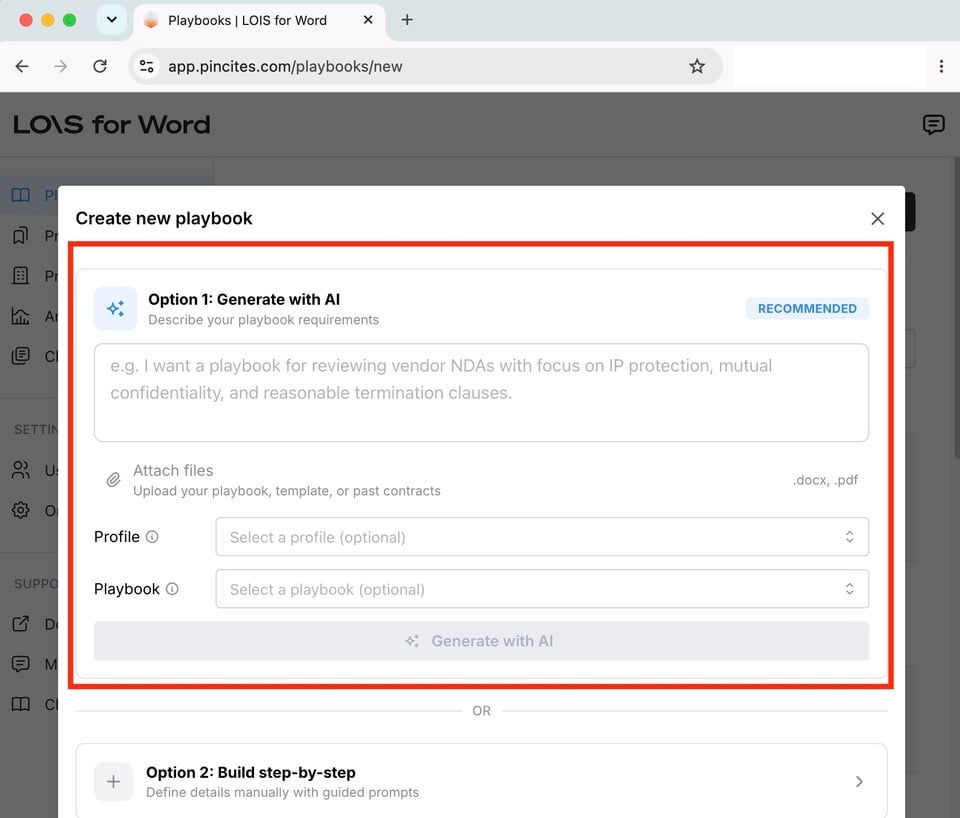
- Prompt the AI — Type out what you want the playbook to accomplish (e.g., “review MSA agreements favoring the customer”).
Describe the contract type, key issues, and your position in plain language. LOIS for Word generates checks based on your description. - Attach files — Upload past contracts, standard templates, instructions, playbooks you already have in different formats, whatever relevant information you have. AI will have a reference on your preferences and generate checks accordingly.
- Add context — Select a profile, or reference an existing playbook for additional context.
To try it out, go to the playbook creator.
Build step-by-step
If you prefer a more guided experience, use the Build step-by-step process, which walks you through which documents and information to provide before generating checks. This approach works best when you need full control over wording, tone, and coverage, for specialized contract types or unique organizational requirements.- General information — Enter a name and description, then specify the document type (e.g., NDA, MSA) and your specific party role (e.g., Customer, Vendor).
- Standard template — Upload your standard template. This document establishes a baseline for your standard language in your first-party paper.
- Past contracts — Add past documents showing your real-world revisions.
- Context — Manually fill out optional fields regarding your review strategy, industry constraints, or relevant governing laws before finalizing the structure.
To try it out, go to the playbook creator.
Generate
Once you select Generate, the AI begins the generation process. Playbook generation can take 10-20 minutes. You can remain on the page to see the AI’s reasoning in real time. As the playbook is generated, you can view its information, checks, and knowledge base.Review checks
If you uploaded redlined contracts from past negotiations, LOIS for Word analyzed your patterns and drafts and suggested checks automatically. Go to the playbook’s Checks > AI suggested checks section to review, edit, and approve each rule.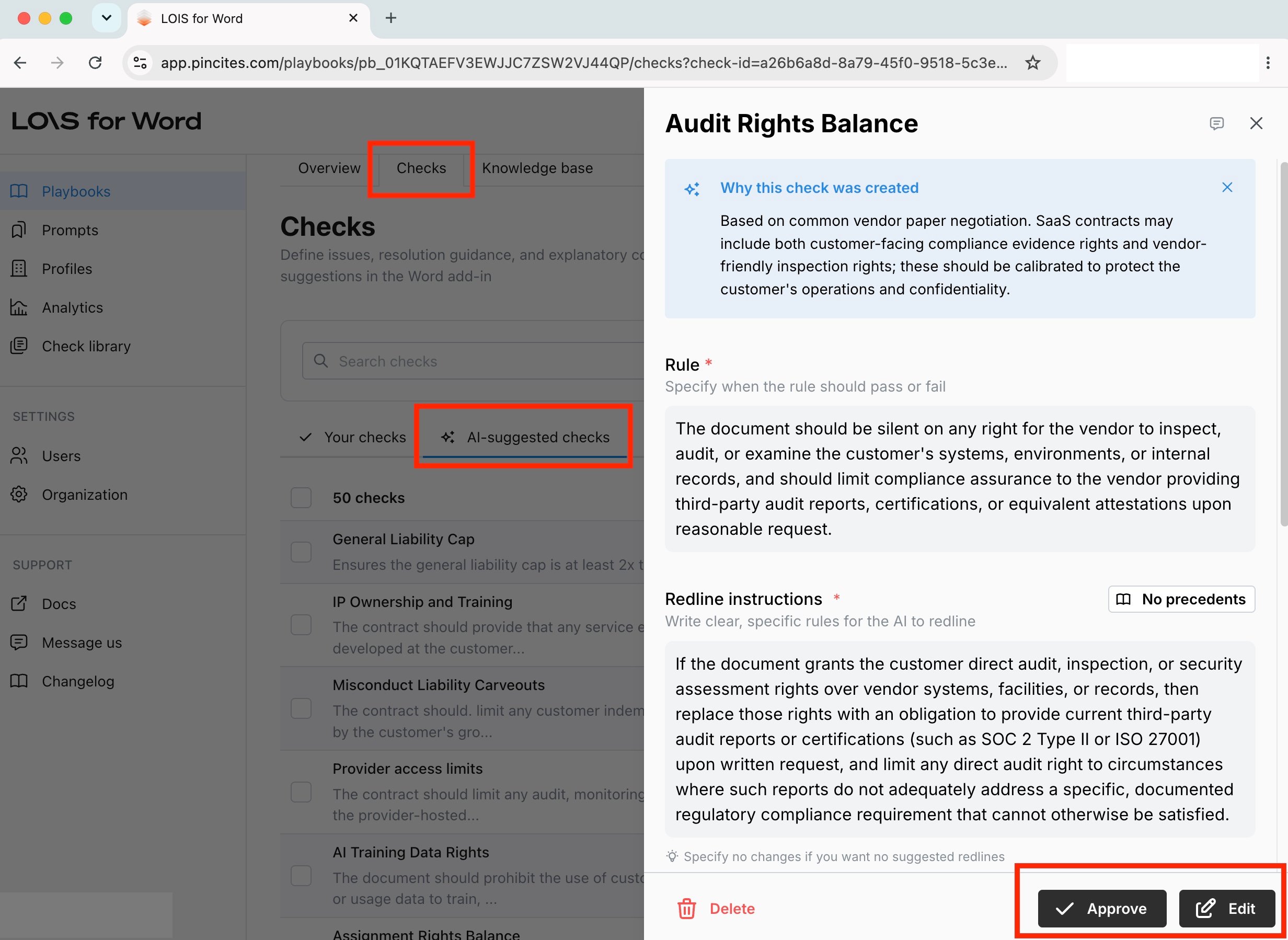
Build further
Once a playbook is generated, you can view it in the Playbooks tab of the web app: https://app.pincites.com/playbooks You can edit the overview information, review and add checks, and add files to the knowledge base to continue refining and maintaining the playbook.Maintain playbooks
- Versions — Maintain multiple versions of a playbook for different deal types or risk tolerances.
- Shared rules — Reuse rules across playbooks so updates apply everywhere.
- Performance review — Monitor which rules fire frequently, which get overridden, and which need tuning.
Resources
- Browse our benchmark playbooks in Composer
- Review playbook performance analytics
- Learn more about shared playbooks here.
- Learn how LOIS for Word improves over time
- Contact support@filevine.com for help or optimization tips