

Creating a saved prompt
- Open the Composer tab in the LOIS for Word sidebar.
- Select Prompts, then New prompt.
- Give the prompt a title and enter the instructions.
- Choose a scope — Personal keeps the prompt to yourself, while Organization shares it with your team (see below).
- Optionally attach reference files or Filevine context (see below).
- Save the prompt to make it available from the prompt picker.
Personal and organization prompts
When you create or edit a prompt, a scope selector controls who can see it:- Personal — only you can see the prompt.
- Organization — everyone in your organization can see the prompt.
The scope selector only appears if you have permission to create organization prompts. Without that permission, all prompts you create are personal.
Attaching Filevine projects and files
If your organization is connected to Filevine, you can attach one or more Filevine projects — or specific project files — to a saved prompt. When the prompt runs, LOIS for Word uses that Filevine context automatically, so you don’t have to select the project each time. This is useful for prompts that always operate against the same matter, such as recurring diligence checks, matter-specific drafting templates, or status summaries. Because the Filevine context is saved with the prompt, recurring prompts carry the right matter context automatically — even in a new chat session that has no Filevine matter pre-selected.1
Open the prompt editor
Create a new saved prompt or edit an existing one.
2
Add a Filevine project
In the prompt editor, use the Filevine project selector to search for and add one or more projects.
3
Optionally pin specific project files
Once a project is attached, you can pin specific files from that project to the prompt. If you don’t pin files, LOIS for Word uses the project as broader context.
4
Save the prompt
Save. The attached projects and files travel with the prompt every time it runs.
If a pinned file is later removed or renamed in Filevine, the prompt editor flags the missing attachment so you can update or remove it. The prompt still runs with the remaining valid attachments.
File attachments
You can attach files to a saved prompt. When you or a teammate selects that prompt from the library, the attached files are automatically included in the chat. This is useful for prompts that reference specific templates, precedent documents, or guidelines.Finding and using saved prompts
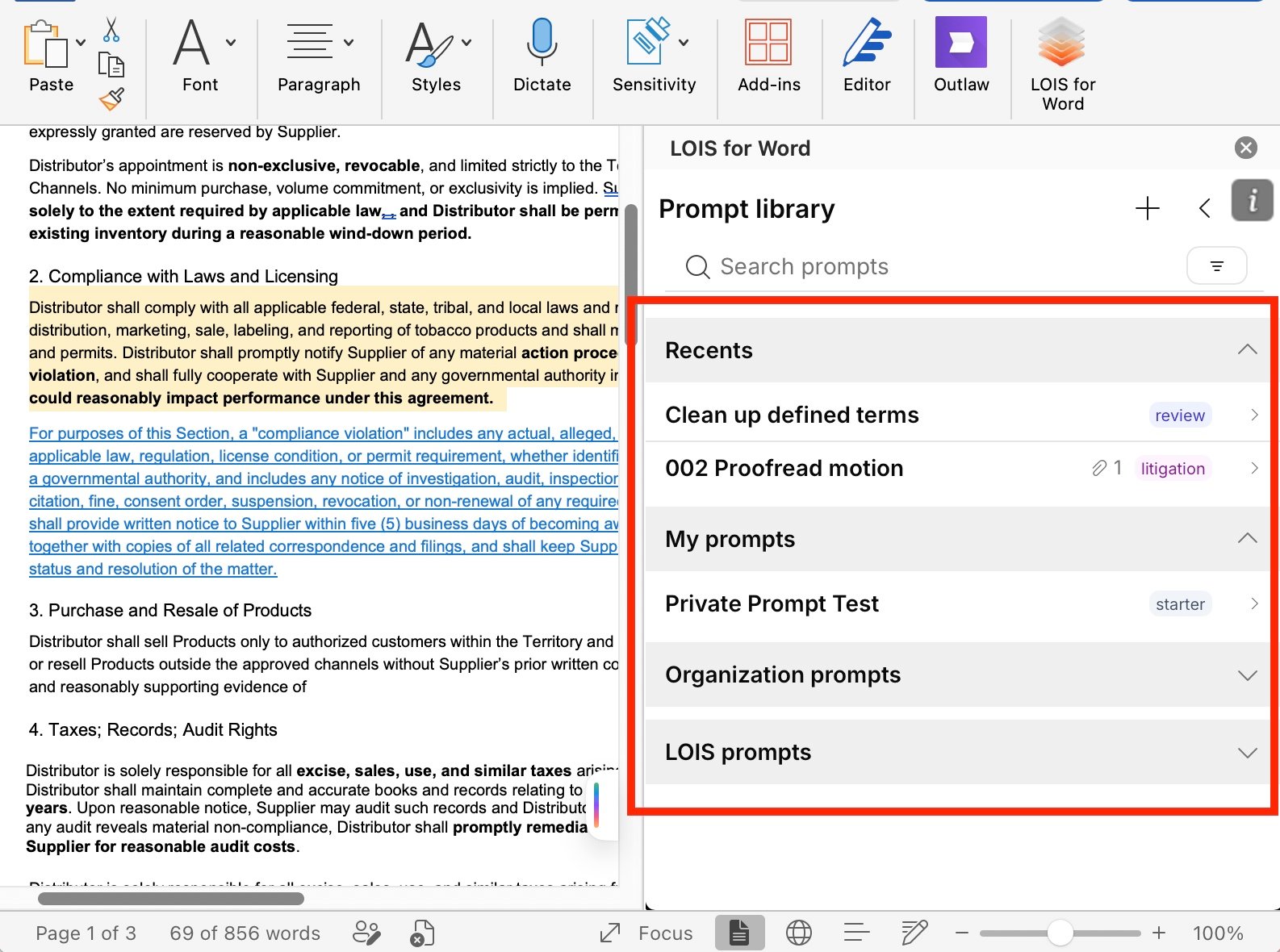
Open the Prompt Library from Composer to see all your saved prompts. Select any prompt to insert it into the chat along with any attached files.Prompt library sections
The prompt library is organized into accordion sections:- Recents: The prompts you’ve used most recently
- My prompts: Your personal prompts
- Organization prompts: Prompts shared across your organization
- LOIS prompts: Official prompts from LOIS for Word
Prompt metadata
Each prompt shows metadata about its attachments. The attachment total counts both uploaded files and attached Filevine entities, and a Filevine project icon appears when a project is attached.Recent prompts
The prompt library includes a Recents section at the top, so the prompts you use most often are always within reach. A prompt is added here when you select it in a chat and send the message. This section appears in both the LOIS for Word prompt library and the web chat prompt selector.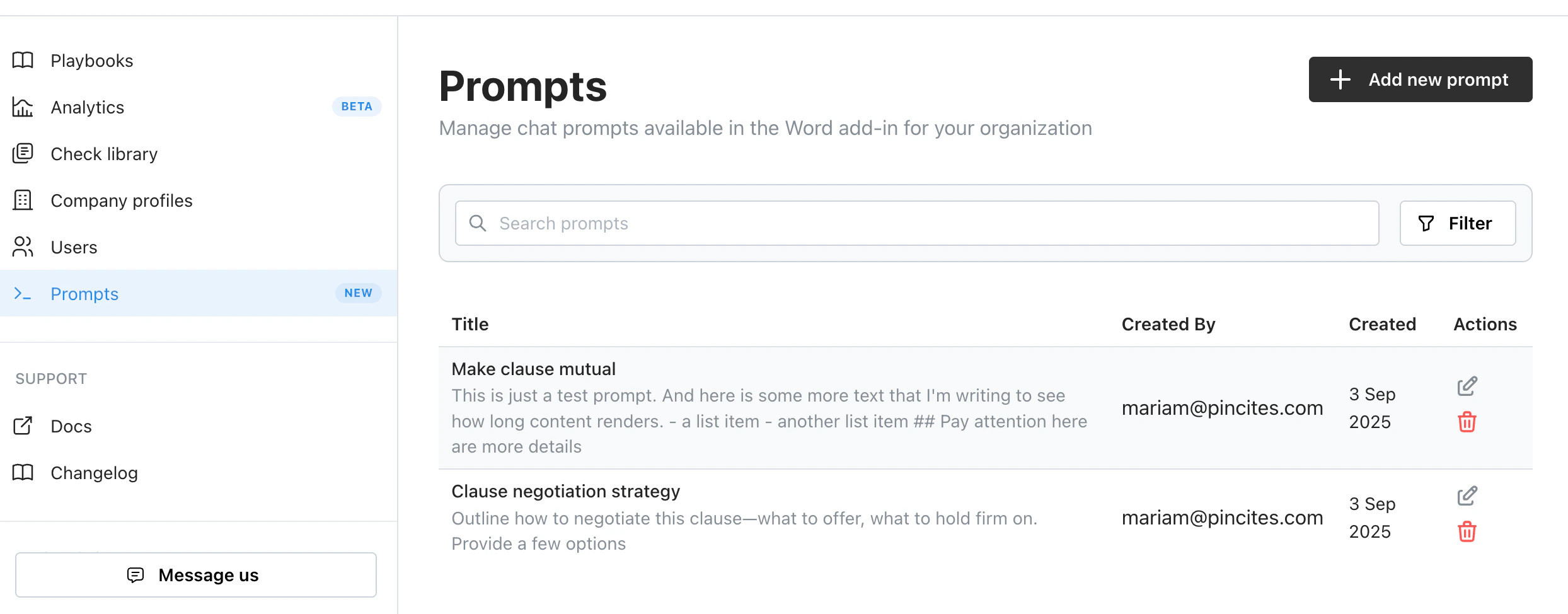
Using a saved prompt
- Open Composer in Word or the web app
- Select the prompts icon or type
/to open the prompt picker - Filter by tag or search by name
- Select the prompt to insert it into the chat input
Inserting a prompt with /p
To jump straight to your saved prompts, type /p in the composer (followed by a space) or select Prompts from the / slash menu. Either way opens your saved prompts list. Selecting a prompt inserts its full text into the composer, ready to send as-is or edit before submitting. Prompt aliases you’ve set display in a readable format when inserted.
The /p list is deliberately short and leads with the prompts you’ve used most recently. If what you need isn’t there, select Browse all prompts at the bottom of the list to open the full library. Anything you’ve already typed into the /p search carries over. Choosing a prompt returns you to the composer you started from, with your draft text, attachments, and Filevine context intact.
Editing and deleting prompts
You can edit or delete your own personal prompts. Organization admins can edit or delete organization prompts.- Edit — update the title, text, notes, tags, scope, or file attachments
- Delete — permanently remove a prompt from the library (confirmation required)
Tips
- Keep prompt titles descriptive — you’ll find them faster in the picker.
- Attach Filevine projects for prompts tied to a specific matter; leave them off for general-purpose prompts.
- Pin individual files when the prompt depends on a particular exhibit, template, or precedent.
- Set a prompt’s scope to Organization once it’s proven, so everyone runs the same review the same way.