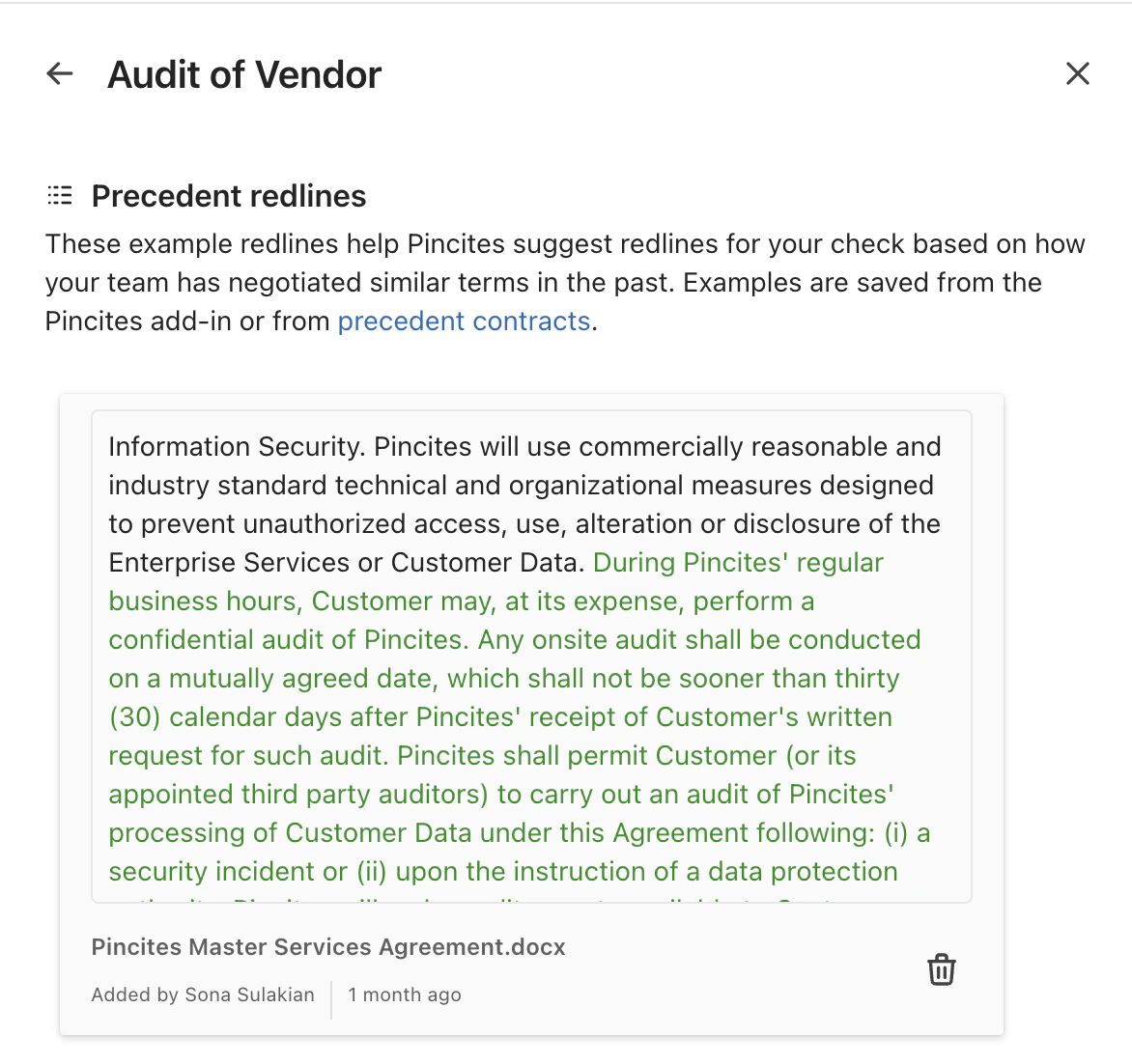
Why precedent matters
Precedents help your team:- Apply checks consistently across negotiations.
- Give new team members examples of acceptable changes.
- Identify checks that may be outdated or too broad.
- Guide AI behavior without adding every edge case to a check’s instructions.
Save precedent
You can save precedent from Word or add it through the web app.From Word
Select Save Redlines next to a redline. The system maps redlines in the document to existing playbook checks and can suggest new checks when it identifies recurring patterns.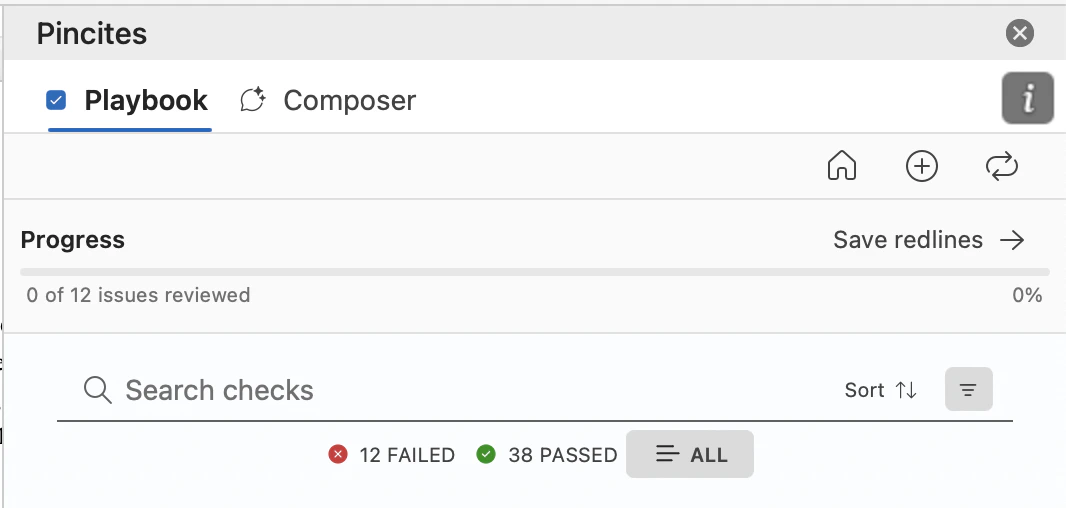
From the web app
Upload precedent redlines directly to a check or playbook. Use this option to add examples from older deals or upload multiple examples.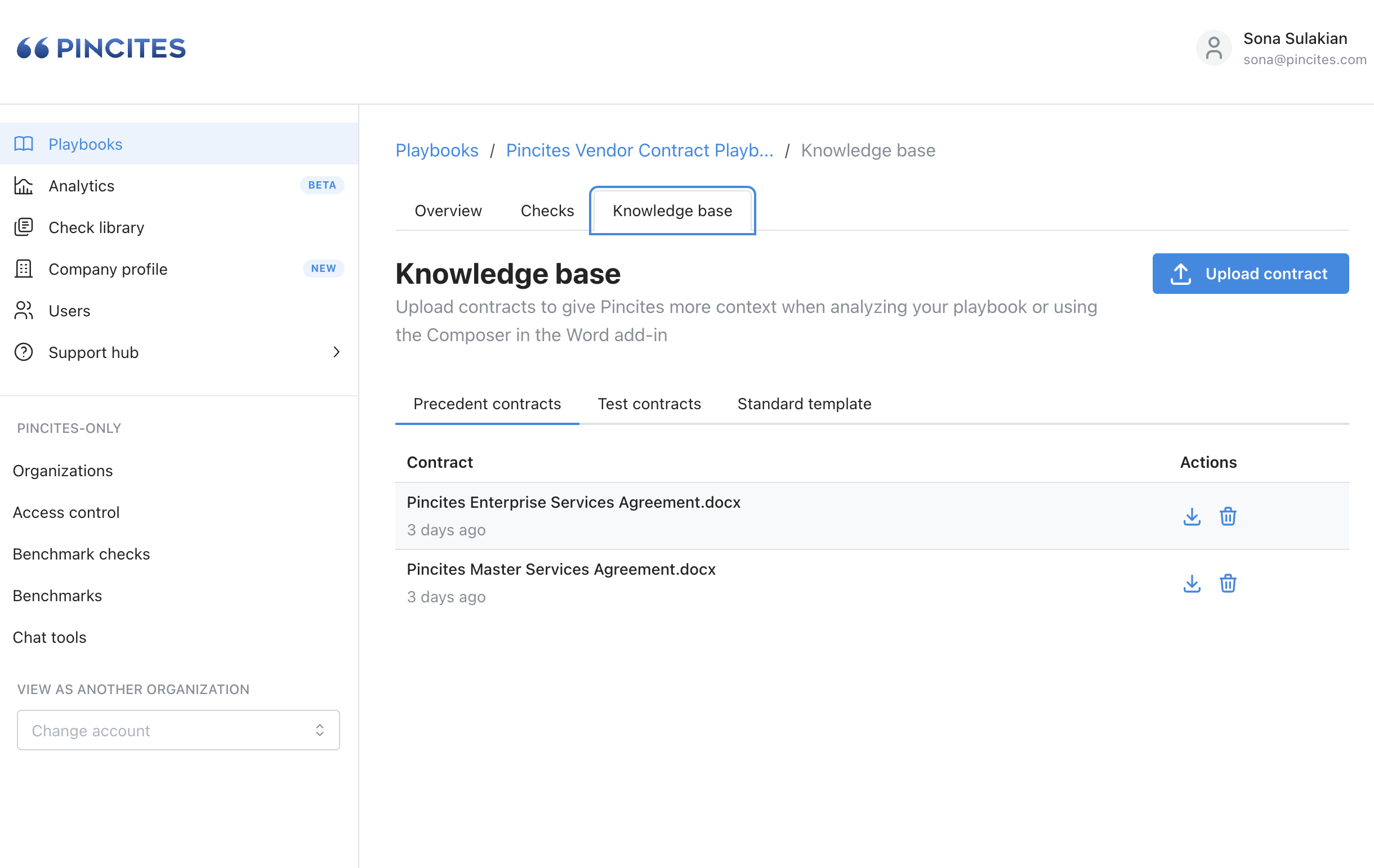
View precedent
Review precedent while working in Word or maintaining a playbook in the web app. Each example includes the source document, who saved it, when it was saved, and the exact redline.In Word
1
Open a failing check
Navigate to the relevant failing check in your playbook review.
2
Open precedents
Select the Precedents circle icon below the suggested redline.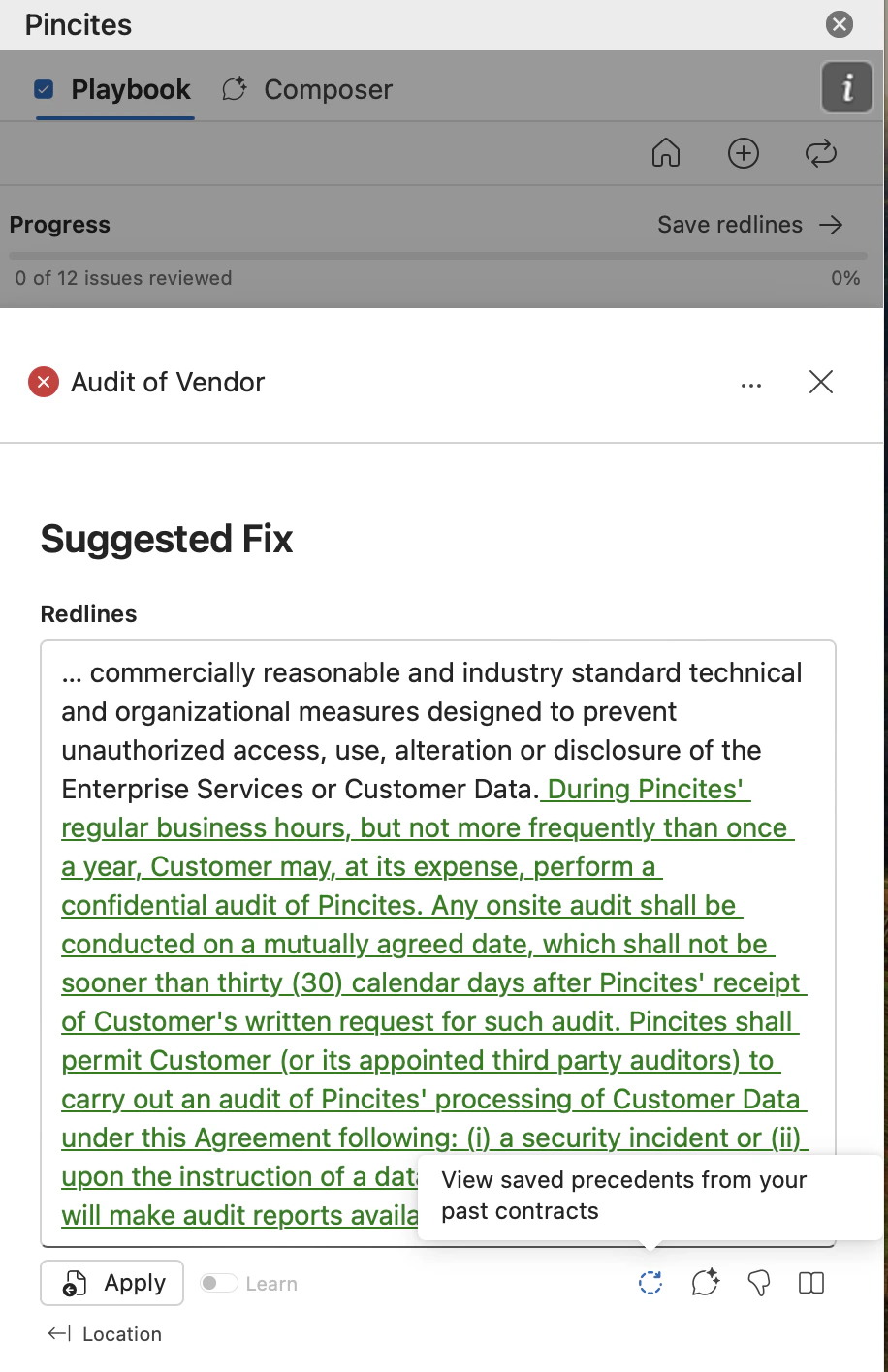
3
Review matching examples
Use the precedent panel to compare real redlines linked to the check and confirm that the suggested change fits the current context.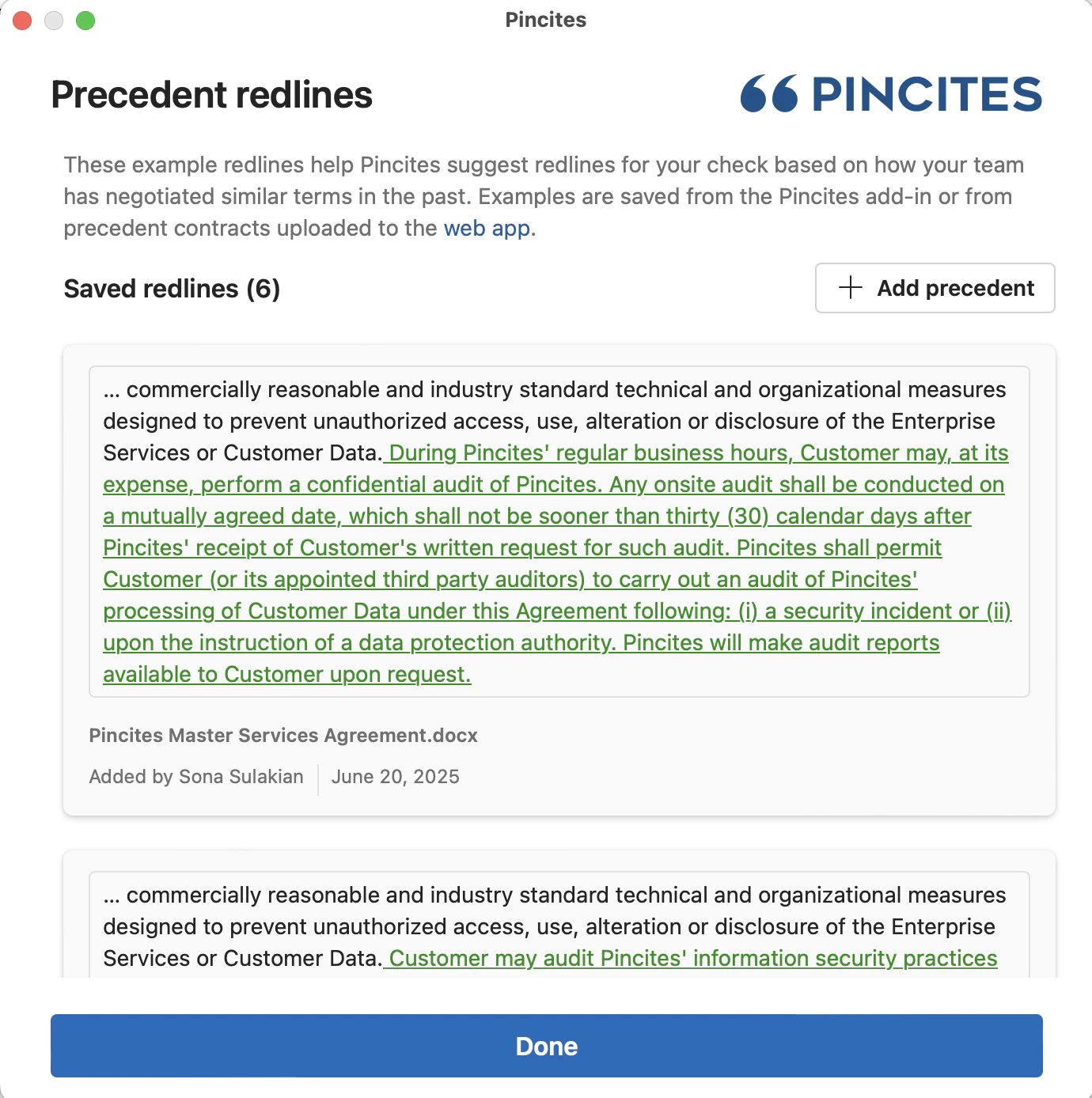
In the web app
1
Open the check
From the playbook editor, open the check you want to review.
2
View precedent redlines
Select View Precedent Redlines.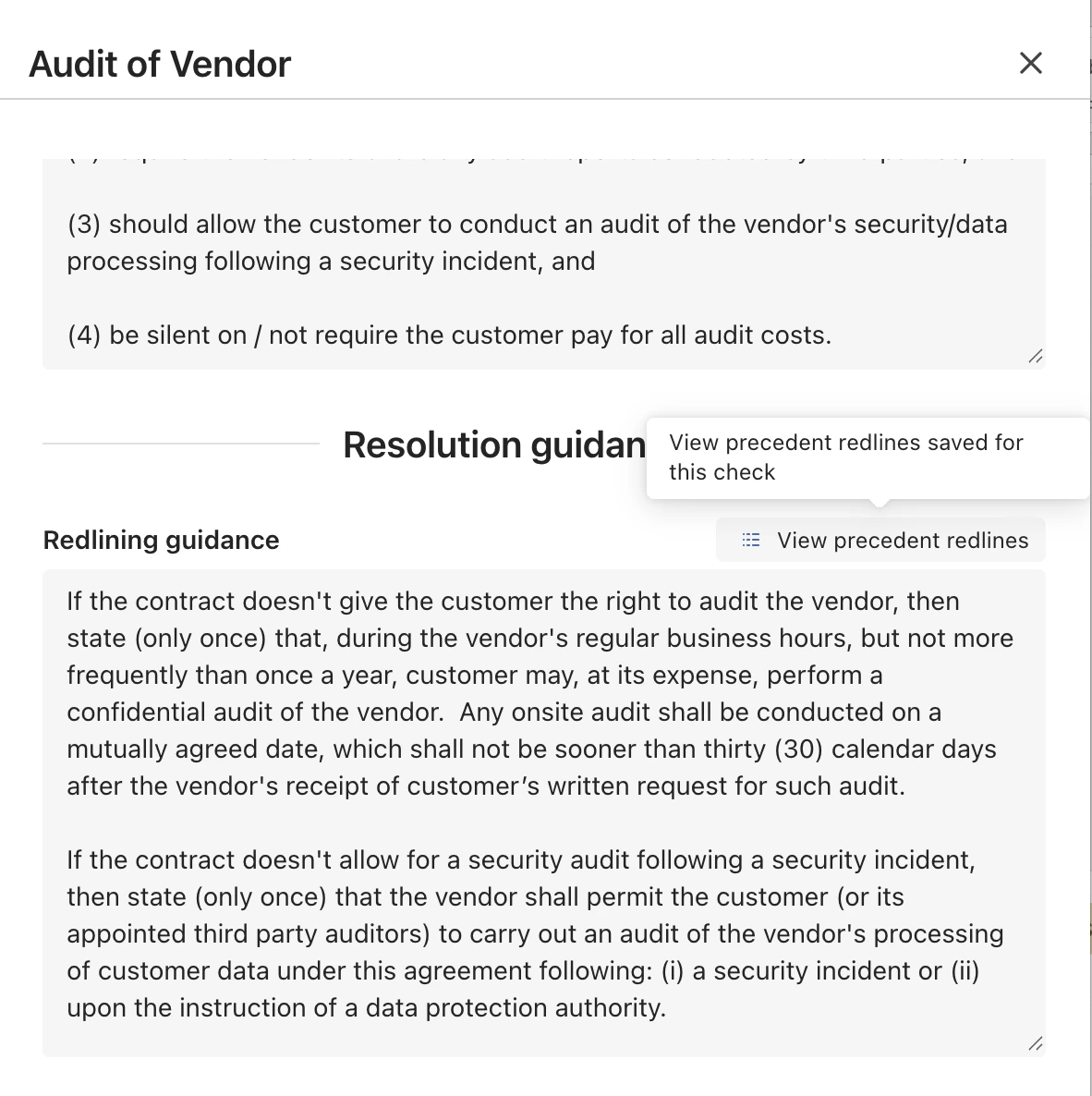
3
Review the examples
Compare the saved examples as you maintain or refine the check.