

Approval modes
Approval modes control how much LOIS does on its own before checking with you. Select a mode from the approval menu, or press Shift+Tab while the prompt is focused to cycle through them.- Ask before edits — LOIS proposes each edit and waits for your approval before applying it.
- Edit automatically — LOIS applies edits to the document as it works.
- Plan — LOIS writes a plan for you to review and approve before it changes the document.
Starting an agent review from Composer
If you describe a review-style task in Composer, LOIS for Word can run an agent review on the open document and return findings inline in the chat. Examples of prompts that trigger an agent review:- “Review this contract”
- “Review this from the perspective of the licensee”
- “Run a review focused on data protection and indemnification”
1
Open Composer
Open the LOIS for Word add-in to the Composer tab.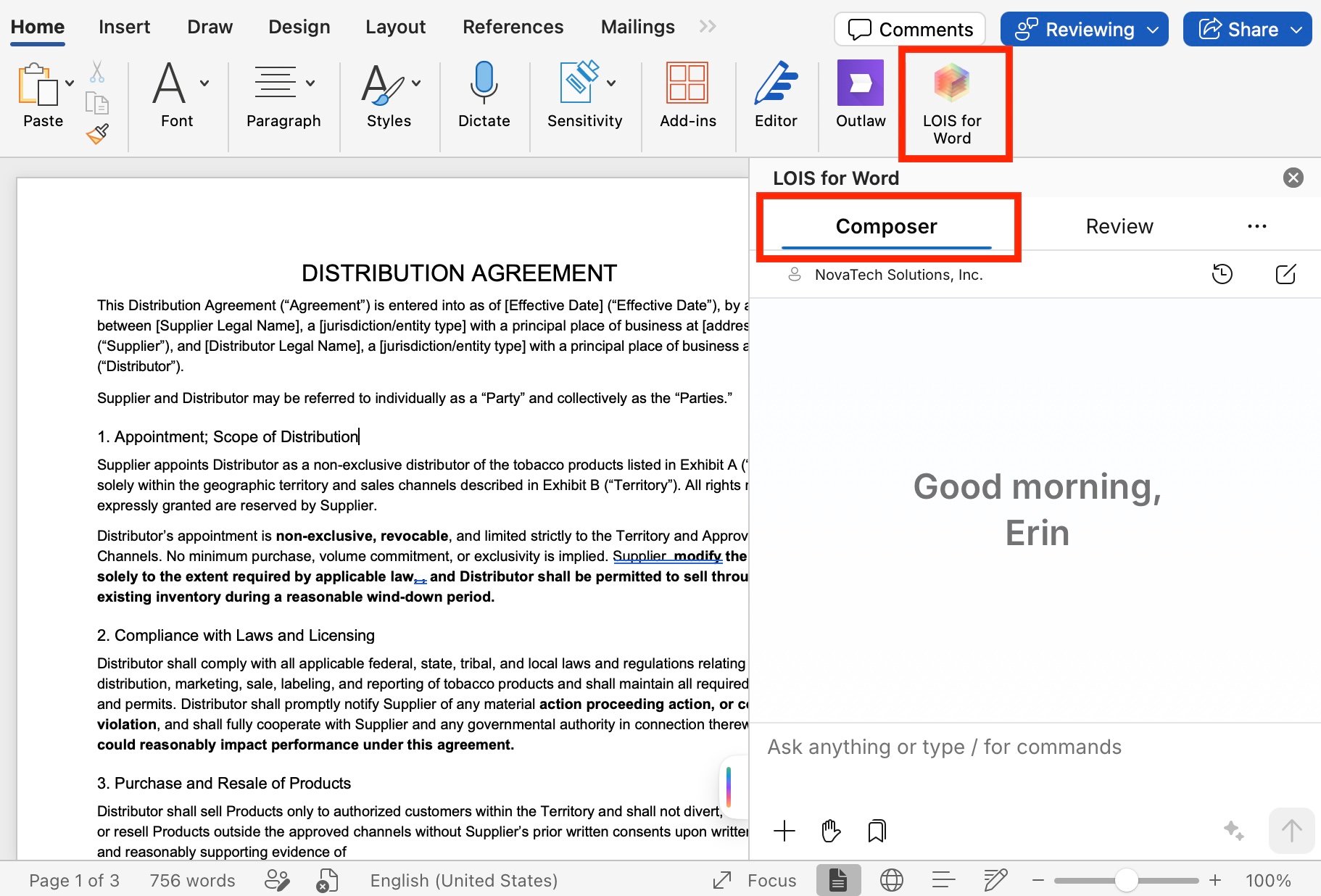
2
Describe the review
Type a review request in plain language. Include the perspective, focus areas, or concerns you want the agent to weigh.
3
Send the message
Send the message as you would any chat. LOIS recognizes the review intent and starts an agent run against the open document.
4
Review the findings
The agent’s findings appear in the chat as they stream in. You can apply suggested edits, ask follow-up questions, or revise the review with another message.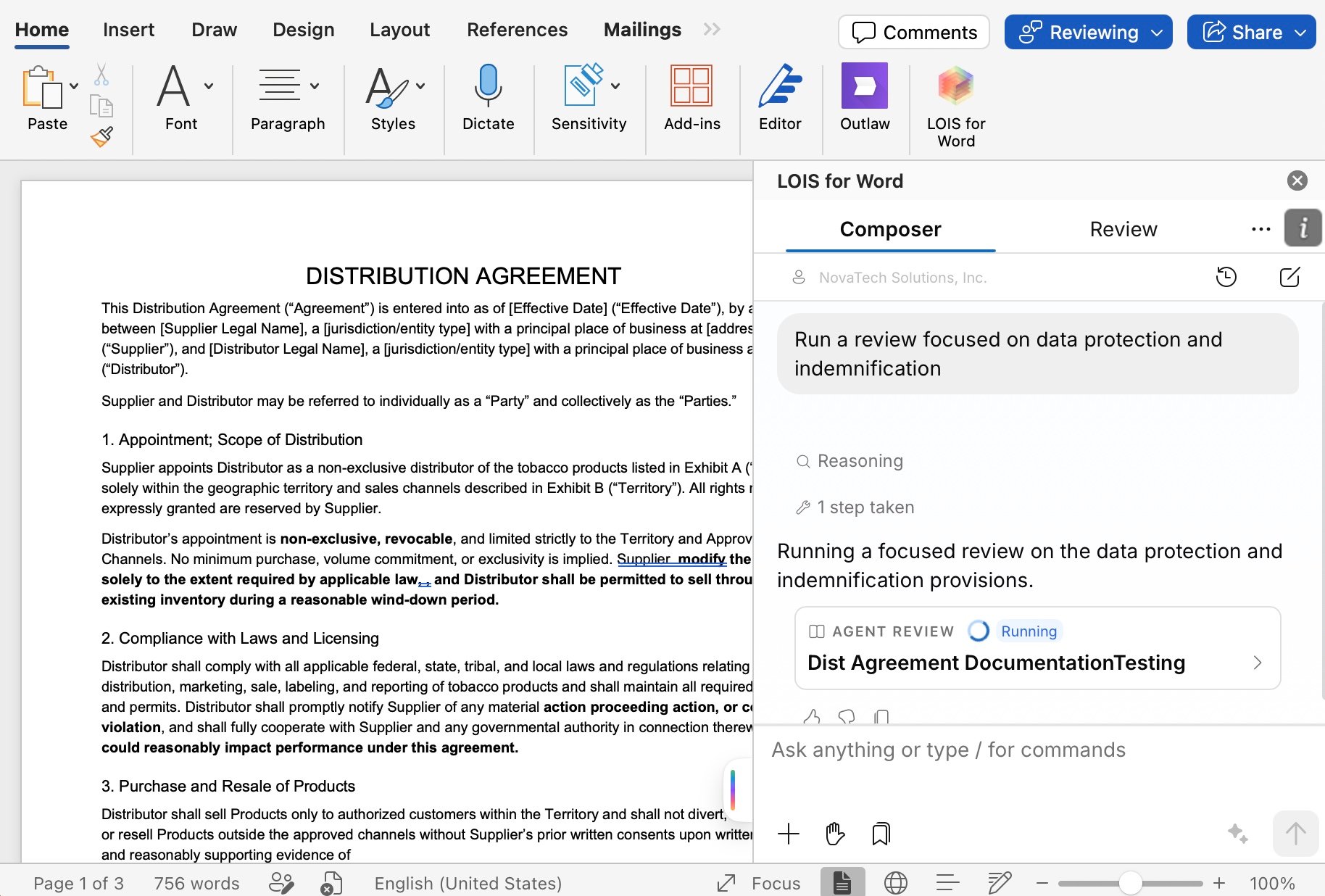
Editing numbered and bulleted lists
You can ask LOIS for Word to modify an automatic numbered or bulleted list in the open document, and it edits the list items directly instead of inserting plain text. Examples of prompts:- “Add a new item after the second bullet”
- “Reorder these outline items”
- “Reformat this list to use Roman numerals”
- “Remove the third numbered item”
Inline paragraph insertions
When LOIS for Word proposes a short addition of one to five paragraphs, it inserts them as non-blocking in-thread redlines rather than opening the OOXML approval popup. You can review and accept these additions in the thread alongside its other proposed changes, without interrupting your flow for a separate approval step.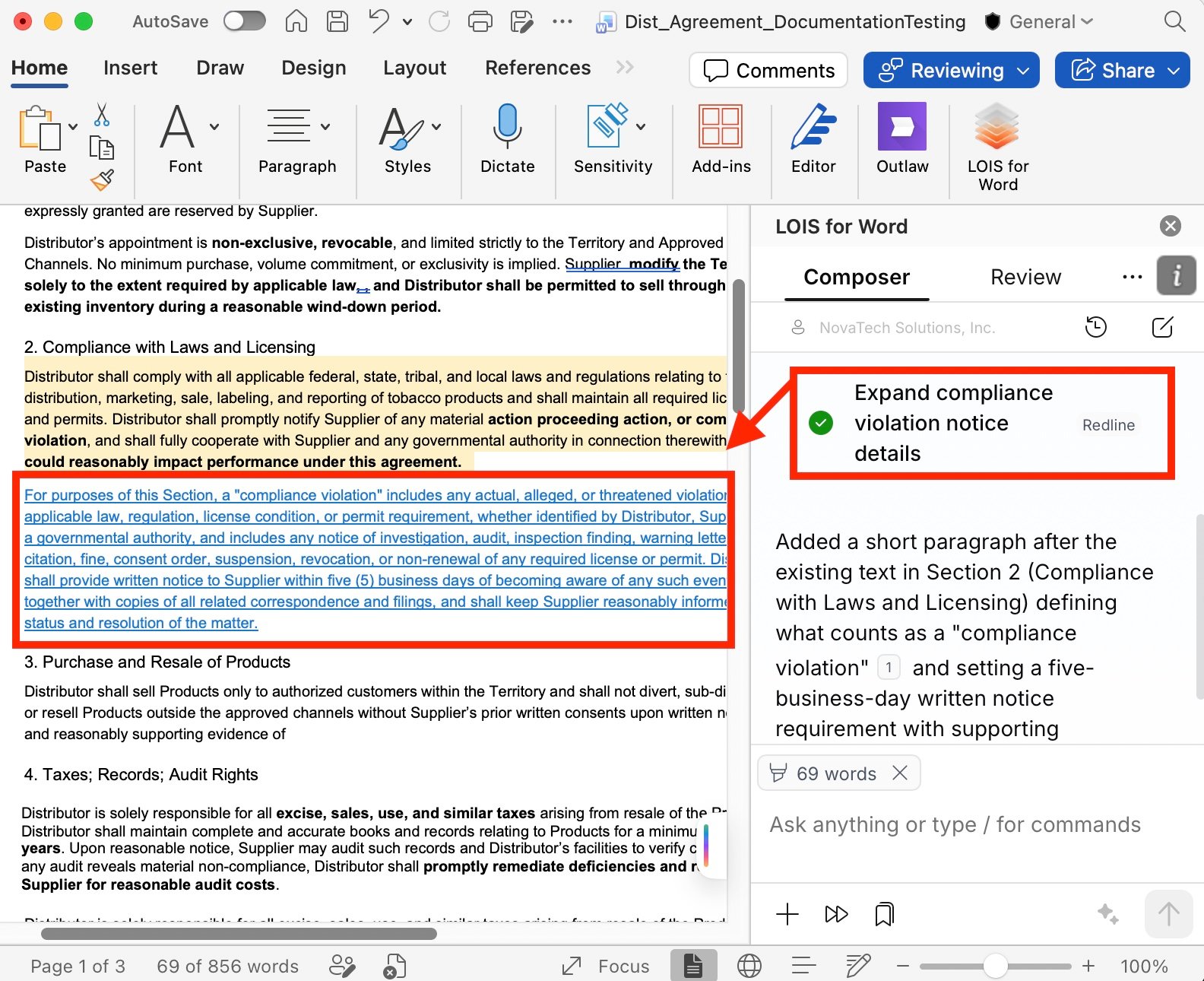
When to use Composer vs the Playbook tab
- Use the Playbook tab when you want a structured pass/fail review against a specific playbook’s checks.
- Use Composer for ad-hoc questions, drafting, and free-form agent reviews scoped by the prompt you write.