

How it works
When you upload your standard template, LOIS for Word knows which clauses are yours. During review, the AI:- Ignores your template language (no suggestions to change what you wrote)
- Focuses only on responding to the counterparty’s redlines
- Suggests fallbacks and comments for their proposed changes
- Sees the full history: deleted clauses, modified language, multiple rounds of edits
Why it matters
- No manual mapping: Your playbook rules attach to the right clauses automatically.
- Smarter every review: The AI learns from edits, comments, and accepted suggestions.
- Always up to date: When your template changes, LOIS for Word remaps everything for you—no rebuild needed.
Setup
Upload your standard template
- Navigate to your playbook
- Go to Knowledge Base, then select the Standard Template tab
- Upload your standard agreement (e.g., Procurement MSA or SaaS MSA)
- LOIS for Word parses each clause and maps it to existing playbook rules automatically
With LOIS for Word, you don’t need to manually map your rules to clauses. LOIS for Word automatically links your playbook rules to the right clauses, learns from your edits, and keeps everything in sync when your templates change.When you update your template, just delete the old one and upload the new version. LOIS for Word automatically remaps everything in the background.
Running your first-party paper review
- Open your contract in Word.
- Select the relevant Playbook (e.g., “SaaS Playbook”).
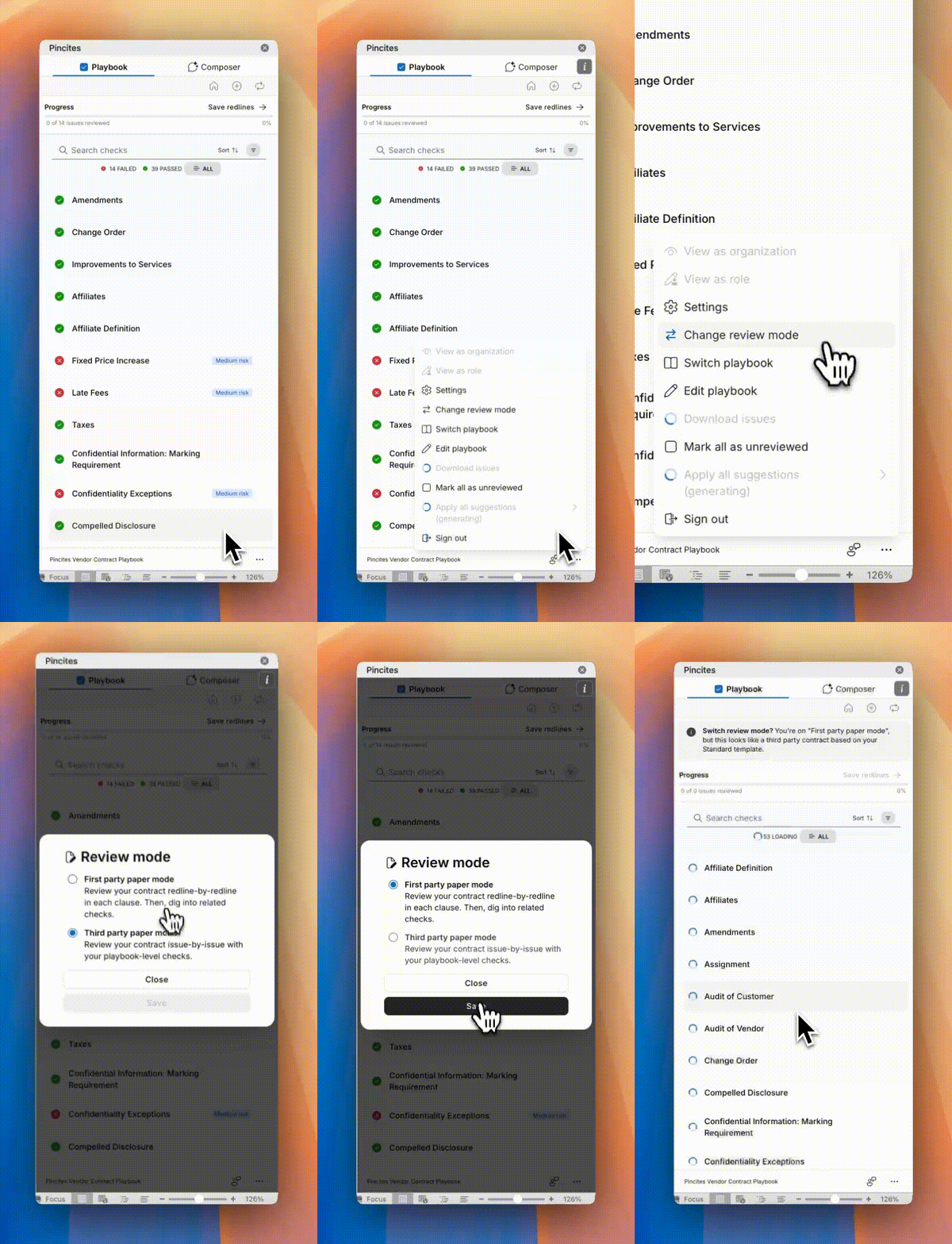
- Select Run Playbook and make sure First-Party Paper mode is ON.
- If needed, toggle between First and Third Party modes from the sidebar.
- LOIS for Word compares your document to your uploaded template and rules, then:
- Detects deviations from your standard positions
- Suggests redlines in place
- Adds comments automatically
What the AI can see
In first-party paper mode, LOIS for Word has visibility into:- Fully deleted clauses
- Modified language in tracked changes
- Multiple rounds of edits
- Your standard template for comparison
Handling unusual redlines
For complex or novel changes the playbook doesn’t cover, use Composer:After the review
Save your redlines
After you finish reviewing, save your final redlines back to LOIS for Word. This trains the system on your decisions and improves future suggestions.Track performance
Use the Analytics dashboard to monitor:- Which playbook rules trigger most often
- Which redlines get accepted vs. rejected
- Issues surfaced vs. resolved
- Estimated time saved
Tips
- Run multiple contracts to benchmark AI performance before and after playbook updates
- Use the same template version for cleaner comparisons
- Toggle between modes to see how first-party and third-party reviews differ
- Add good examples to your precedent library to strengthen future suggestions