

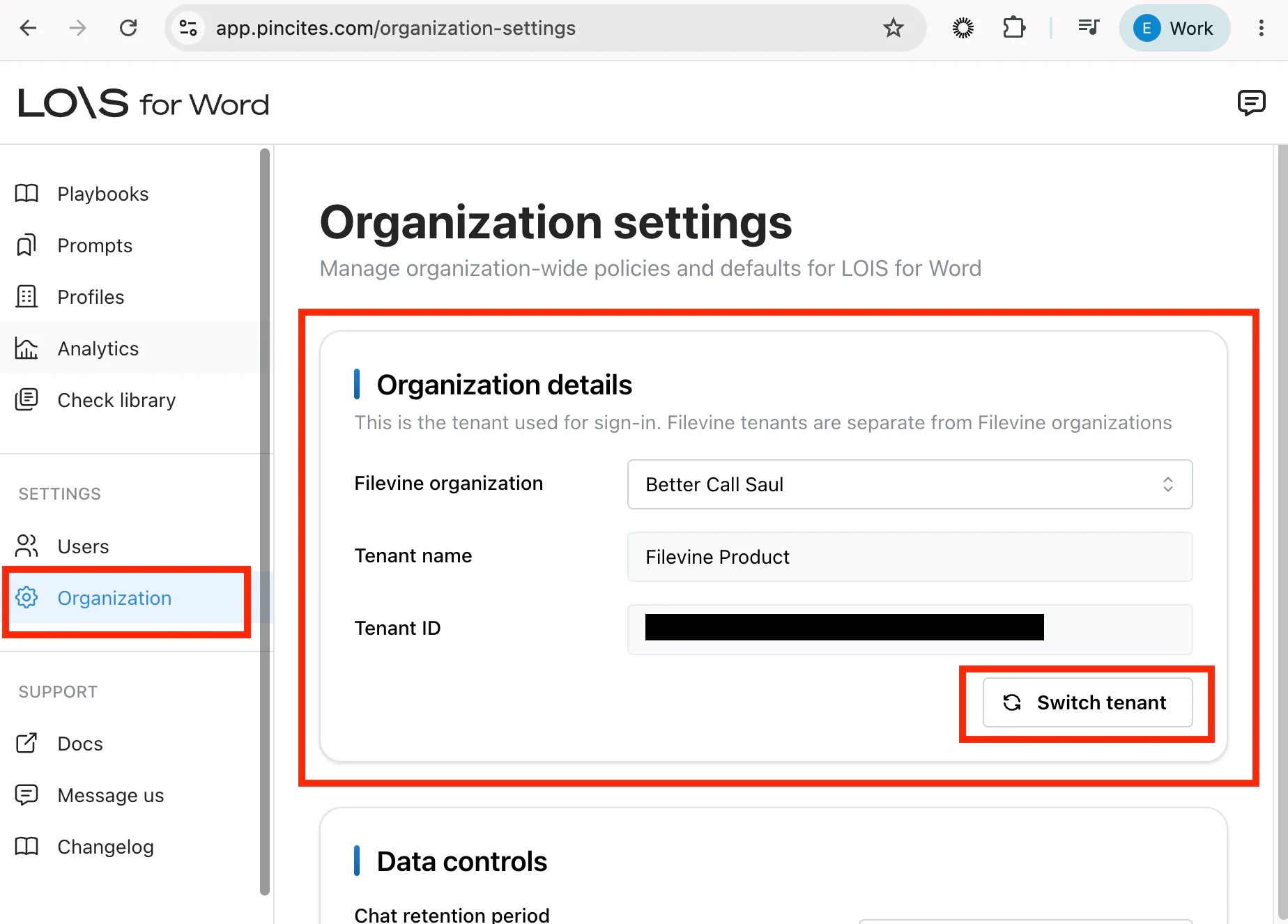
Organization details
The organization details card shows read-only information about your organization:- Filevine Organization (when signed in with Filevine)
- Authentication provider
- Tenant name
- Tenant ID (when available)
Data retention
Admins can control how long LOIS retains chat history for their organization.Configuring chat history retention
1
Open Organization settings
Select Organization in the dashboard sidebar.
2
Find the Data retention card
Scroll to the Data retention section.
3
Choose a retention period
Select a retention period from the dropdown. Select Keep until manually deleted to keep chat history until you delete it manually, or pick a fixed number of days after which LOIS automatically deletes chat sessions.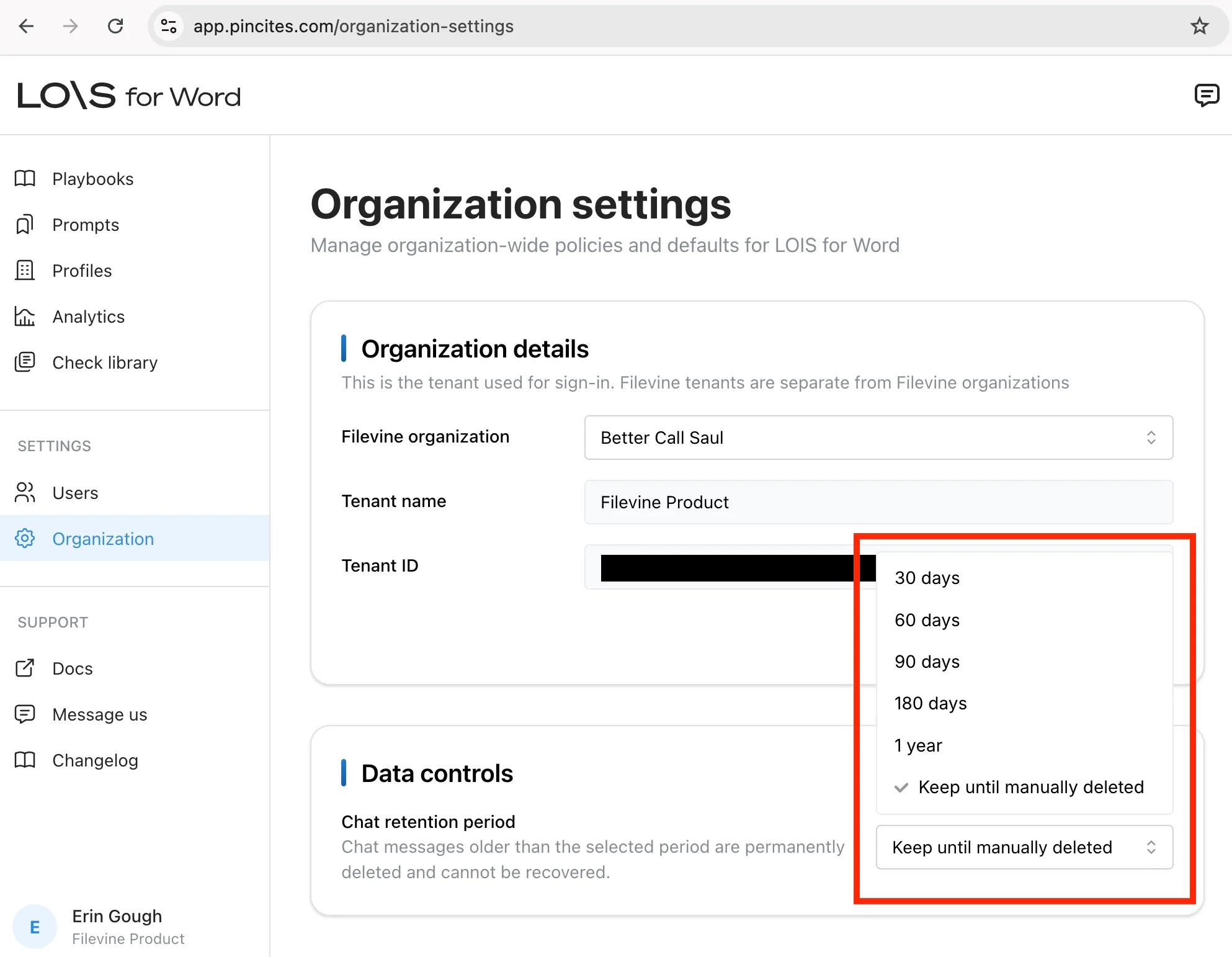
4
Save your changes
The new retention setting applies to everyone in your organization.
Only organization admins can change retention settings. Other roles see the setting as read-only.